
How to Convert Santander Bank Statements to Excel and CSV
A step-by-step guide to export your Santander bank statements into usable spreadsheet formats.
Managing your banking account effectively starts with getting your transaction history into a format that actually works. If you're a Santander customer in the UK, you've likely clicked "Microsoft Excel" in the download menu and ended up with a file Excel refuses to open properly.
There's a reason for that, and it's stranger than you'd expect. Whether you're running a small business, handling tax returns, or organising personal records, this guide explains what Santander's export really produces.
We'll walk you through the export's limits, the .xls file that isn't one, and introduce the bank statement converter that turns Santander PDFs into structured data in a few clicks.
Can You Download Santander Bank Statements Directly in Excel or CSV?
Short answer: yes, and the "Excel" option doesn't give you Excel.
Santander does export. Click "Download transactions" above the transactions table, set a date range, pick a format from the dropdown, and download. Santander's own help pages confirm the formats: Excel, Quicken (QIF), PDF and Microsoft Money for business, plus midata (CSV) for personal current accounts. Two hard limits apply: 600 transactions per download, and roughly 12 months of history.
Now the strange part. Users have documented for years that Santander's "Microsoft Excel" download is actually an HTML web page saved with a .xls extension. Browsers get confused, LibreOffice chokes on it, and Mac users can't open it at all. The genuine CSV download was reportedly broken during a 2012 site revamp and never restored, leaving QIF as the only format that reliably imports anywhere. One business customer described their working routine: download the XLS, grant themselves file permissions (only discovered after calling Santander support), open in Excel, save as CSV, reopen to strip blank columns, rows and headers. It worked on the third monthly attempt.
Meanwhile, the official statement stays a PDF. So if you want a real spreadsheet, more than 600 transactions, or anything older than a year, download the PDF and convert it with StatementSheet.
Why Convert Santander PDF Bank Statements to Excel or CSV?
Santander's export exists, but the file it hands you creates more work than it saves. Here's why converting the PDF is the better route:
- Get a real .xlsx file, not HTML in disguiseSantander's "Microsoft Excel" download is HTML data saved with a .xls extension. Excel may open it, LibreOffice may not, and Mac users often can't see it at all. A conversion gives you a genuine Excel workbook.
- Escape the 600-transaction capSantander limits each download to 600 transactions. At 50 transactions a month, a twelve-month range already forces a second download, and a busy business account needs several.
- Reach past the 12-month windowThe export only goes back 12 months. Accountants regularly hit this wall trying to import a few years of history into QuickBooks, and the PDF statements are the only source beyond it.
- Better Tax Reporting for HMRCIf you're self-employed or have rental income, clean CSV files make it easier to categorise expenses and prepare accurate submissions for Self Assessment or Making Tax Digital, across the 6 April to 5 April tax year.
- Accounting Software IntegrationQuickBooks Online accepts only QBO and CSV. Santander's XLS isn't either, which is why Intuit's own support tells Santander users to convert the file with a third-party tool first.
Santander Download Transactions vs. PDF Statement
Santander offers several formats. Knowing what each actually contains saves an afternoon.
| Feature | Download transactions | PDF statement (converted) |
|---|---|---|
| "Excel" format | HTML with a .xls extension | True .xlsx workbook |
| Transaction limit | 600 per download | None |
| History | About 12 months | Your full statement archive |
| Works on Mac | Often not | Yes |
| Best for | QIF into FreeAgent or Quicken | HMRC, QuickBooks, Xero, audits |
Rule of thumb: if your software takes QIF, that's Santander's most reliable native format. For anything expecting CSV or Excel, convert the PDF instead of wrestling the .xls.
Why Use StatementSheet?
Looking for a simple and accurate way to get Santander statements into CSV or Excel? StatementSheet is designed for exactly the job Santander's export doesn't do.
- ✔️ Produces genuine .xlsx and .csv files, not HTML wearing a .xls extension
- ✔️ No 600-transaction cap and no 12-month ceiling
- ✔️ Works on Mac, where Santander's XLS often won't open
- ✔️ Outputs the Date, Description, Credit and Debit columns QuickBooks Online expects
- ✔️ Optimised for UK currency (£) and DD/MM/YYYY dates
- ✔️ HMRC and MTD ready, compatible with Xero, QuickBooks and FreeAgent
- ✔️ Supports all Santander accounts, personal and business
- ✔️ GDPR compliant and secure, no software download needed
Which Santander Documents Can You Convert?
StatementSheet handles the full Santander UK range:
- Santander current account statements, including 123 and Edge accounts
- Santander savings account statements
- Santander credit card statements, where money in is credit and money out is debit
- Business Banking and Corporate statements
- Archived statements beyond the 12-month export window, plus scanned copies
How to Convert Santander PDF Bank Statements in Four Easy Steps
Here’s how you can convert your Santander PDF bank statements into editable Excel or CSV files:
Step 1: Download Your Santander PDF Bank Statement
- Log in to your Santander UK Online Banking account
- From the 'My Accounts and Transactions' tab, choose the account you need
- Click 'Download transactions' above the transactions table and set your date range (the UK tax year runs 06/04 to 05/04)
- Select PDF from the 'Download to' dropdown and save the file
Want the native export? The same dropdown offers Excel, QIF and, for personal current accounts, midata (CSV), which gives a masked 12-month transaction history. Remember the 600-transaction cap per download, and that the "Excel" file is really HTML with a .xls extension. Business Banking users can also choose 'All available transactions' or 'Since last download'.
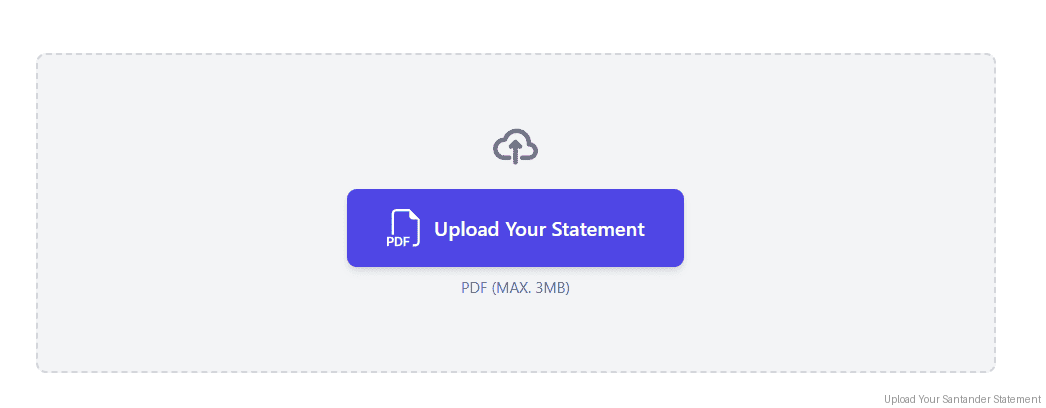
Step 2: Upload your PDF Bank Statement
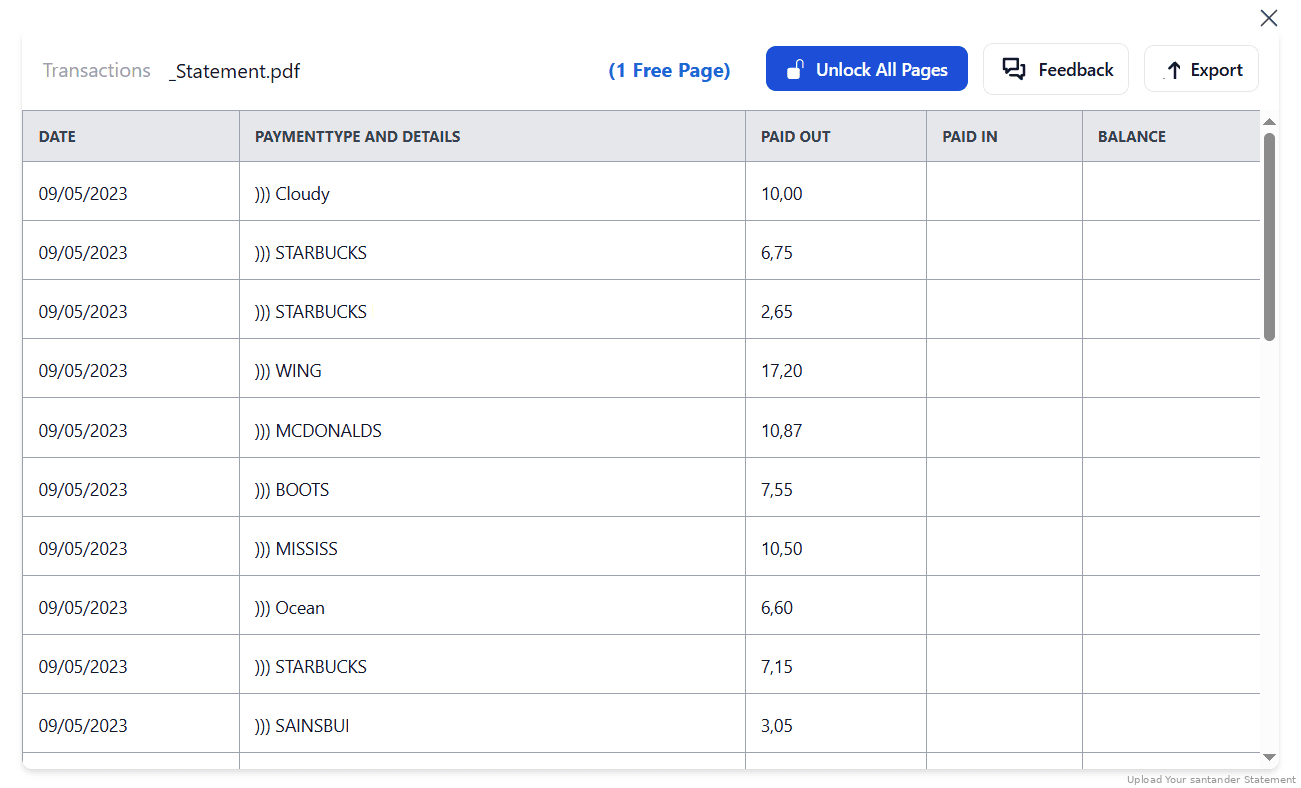
Step 3: Our smart engine converts it to a structured Excel or CSV file.

Step 4: Check result & Download your converted document instantly
Can You Convert Santander Statements Manually?
One Santander Business customer documented what manual handling actually takes: download the XLS, grant yourself permissions on your own file (a detail only discovered by calling Santander support), open it in Excel, save it as CSV, then reopen it to strip blank columns, blank rows and header text. They reported success on the third monthly attempt.
There are subtler traps. On credit card statements, money in maps to credit and money out to debit, the opposite convention from the bank statements, and mixing them up corrupts your ledger silently. The 600-transaction cap means a year often arrives in pieces that must be merged without losing a row at the boundaries.
An automated converter reads the PDF statement directly, produces a genuine spreadsheet with correctly labelled credit and debit columns, respects DD/MM/YYYY dates, and takes as many transactions as the statement contains, which is why the four-step method above beats the XLS routine entirely.
Related Guides
More UK Bank Guides:
Frequently Asked Questions
How do I download my Santander transactions in CSV?
Click 'Download transactions' above the transactions table, set a date range, then choose a format. Personal current accounts offer midata (CSV), which gives a masked 12-month history. Otherwise you get Excel, QIF, TXT or PDF. For a clean CSV of the full statement, convert the PDF with StatementSheet.
Why won't Santander's "Excel" file open properly?
Because it isn't an Excel file. Users have documented that Santander's XLS download is actually an HTML web page saved with a .xls extension. Browsers misidentify it, LibreOffice struggles with it, and Mac users often can't open it at all.
Why does my export stop partway through the year?
Santander caps each download at 600 transactions. At around 50 a month, a twelve-month range already needs a second download. The export also only reaches back about 12 months.
Why won't QuickBooks accept my Santander file?
QuickBooks Online only takes QBO and CSV files. Santander's XLS is neither, which is why Intuit's own support directs Santander users to a third-party converter. Note also that on credit cards, money in is credit and money out is debit, the reverse of bank statements.
Can it convert scanned PDFs?
Yes. StatementSheet uses OCR to convert scanned documents accurately, and works with both personal and business Santander accounts.
Does Santander charge to download PDF statements?
No. You can access and download your PDF bank statements for free via Santander online banking, and they reach further back than the 12-month transaction export.
Tips for Organising Your Santander Bank Statements
Once your Santander PDF files are converted to Excel or CSV, use these tips to better manage and secure your financial records:
- Check the file is really a spreadsheetIf a Santander download opens as a web page or refuses to load, it's the HTML-as-.xls problem. Rename it to .html to inspect it, or skip the whole issue by converting the PDF statement.
- Watch the credit and debit convention on cardsOn Santander credit card statements, money in maps to credit and money out to debit, the opposite of the bank statement convention. Label the columns before importing anywhere.
- Use Excel pivot tables for analysisBuild reports from transaction data across multiple Santander accounts, ideal for Self Assessment or VAT work.
- Check for gaps at the 600-transaction boundaryWhen merging several exports, verify the running balance carries across each file. That's how you catch a transaction lost where one download stopped and the next began.
- Store securely with cloud storageUse services like OneDrive, iCloud, or Dropbox to protect and back up your statements beyond Santander's online window.
Troubleshooting Common Santander Conversion Issues
- Your .xls file won't open, or opens as a web pageIt's HTML with an .xls extension. Rename it to .html and open it in a browser, then copy into a spreadsheet, or convert the PDF statement and skip the workaround.
- You can't see the file at all on a MacA known Santander complaint. The XLS option is effectively unusable for Mac users. Download the PDF instead, which opens anywhere.
- Transactions are missing from your downloadYou've hit the 600-transaction limit. Narrow the date range and run multiple downloads, or convert the statement PDF which has no cap.
- You can't reach transactions from two years agoThe transaction export only covers about 12 months. Your PDF statements go further back, and converting them is the only way to rebuild a multi-year ledger.
Final Thoughts: Convert and Take Control
Santander does let you download transactions. It just caps them at 600 per file, limits you to twelve months, and hands you an "Excel" file that is really an HTML page in disguise, unusable on a Mac and rejected by QuickBooks.
With StatementSheet, your Santander PDF statements become genuine, correctly labelled Excel or CSV files in seconds. No permissions dance, no renaming extensions, no third attempt.
Ready to convert your Santander bank statement to Excel or CSV?
➡️ Visit StatementSheet and transform your PDFs into actionable spreadsheets.