
How to Convert Lloyds Bank Statements to Excel and CSV
A step-by-step guide to export your Lloyds bank statements into usable spreadsheet formats.
Keeping track of your bank account activity is vital for personal budgeting, tax reporting, or business accounting. If you bank with Lloyds, you've probably discovered that its CSV export exists but is hedged with limits so specific they're almost comical: a 90-day window the interface calls "three months", a hard cap of 150 transactions, and desktop only.
Let's explore what Lloyds actually offers, why a full tax year needs five separate downloads rather than four, and how to convert Lloyds PDF bank statements into Excel or CSV using StatementSheet, the most efficient bank statement converter designed for UK banking formats.
Can You Download Lloyds Bank Statements Directly in Excel or CSV ?
Short Answer: yes for transactions, but with three restrictions that catch everyone out.
Lloyds does export. Above your transactions there's a box labelled "Statement options"; click it and choose "Export transactions (CSV, QIF)", then pick a date range. Lloyds' own business help pages describe exactly this path.
Then the limits bite. The interface says you can download three months at a time, but in practice it means 90 days, so downloading four files to cover a year leaves five or six days missing. You actually need five files, not four. Each export is also capped at 150 transactions, which a busy business account exceeds in a single quarter. And the Lloyds mobile app cannot export CSV at all: it must be done on a desktop browser. Only the last 12 months of transaction data are available, and every file downloads as exportStatements-xx.csv, with nothing in the name to tell you which account or period it covers.
Your PDF statements, by contrast, go back at least 10 years in the mobile app. So for a full tax year, an older period, or a file you can actually reconcile, download the PDF and convert it with StatementSheet.
Why Convert Lloyds PDF Bank Statements to Excel or CSV ?
Lloyds' native CSV works for a single quiet month. Converting the PDF statement handles everything it can't:
- Escape the 90-day and 150-transaction capsA UK tax year (6 April to 5 April) needs at least five separate CSV downloads because "three months" really means 90 days. Add the 150-transaction cap and a busy year can require ten or more files, each needing manual merging.
- Reach past the 12-month export windowOnly the most recent 12 months of transaction data can be exported. Your PDF statements go back at least 10 years in the app, so anything older exists only as a PDF.
- Keep multi-line descriptions in one rowLloyds statements wrap longer payment references across two or three lines. A copy-paste turns each wrapped line into its own row, leaving orphaned description fragments and amounts detached from their transactions.
- Self Assessment and Making Tax DigitalImport Lloyds transactions into Xero, QuickBooks, FreeAgent or Sage using clean CSV files, with correctly parsed DD/MM/YYYY dates that Excel won't misread as month-first.
- Convert on any deviceThe Lloyds app can't export CSV at all, only download PDF statements. Converting the PDF means you're never forced back to a desktop just to get your data.
Lloyds CSV Export vs. PDF Statement: Which Should You Use?
The native export is fine for a quiet month. Anything larger, and its limits multiply.
| Feature | Export transactions (CSV, QIF) | PDF statement (converted) |
|---|---|---|
| Period per download | 90 days (labelled "3 months") | Whole statements, merged freely |
| Transaction limit | 150 per file | None |
| History available | Last 12 months | At least 10 years in the app |
| Works on mobile | No, desktop only | Yes |
| Best for | One quiet recent month | Tax years, HMRC, lenders, audits |
Rule of thumb: for a single low-volume month on a desktop, use the native export. For a tax year, a busy business account, or anything older than 12 months, convert the PDF.
Why Use StatementSheet ?
StatementSheet is a bank statement converter that makes it effortless to extract data from Lloyds PDF statements. Here's why it's the best way to convert a Lloyds bank statement to Excel or CSV:
- ✔️ No 90-day window, no 150-transaction cap, no five-file jigsaw
- ✔️ Rejoins multi-line payment references into a single clean row
- ✔️ Reaches the full 10-year PDF archive, not just the 12-month export window
- ✔️ Works from any device, unlike Lloyds' desktop-only CSV export
- ✔️ Handles DD/MM/YYYY dates so Excel never reads them month-first
- ✔️ Fully supports GBP transactions and UK bank formatting
- ✔️ Built for HMRC and MTD, compatible with Xero, QuickBooks, Sage and FreeAgent
- ✔️ Private, secure, GDPR-compliant, files deleted after processing
Which Lloyds Documents Can You Convert?
Lloyds Banking Group has over 23 million digitally active customers. StatementSheet handles the full range:
- Lloyds personal and joint current account statements, including Club Lloyds
- Lloyds credit card statements
- Business current account and Online for Business statements
- Commercial Banking Online statements, whose reports differ from legacy channels
- Halifax and Bank of Scotland statements, which share the same platform, plus scanned copies
How to Convert Lloyds PDF Bank Statements in Four Easy Steps ?
Here’s how to get started with converting your Lloyds bank statements.
Step 1: Download Your Lloyds PDF Bank Statement
- Log in to Lloyds online banking or the mobile app
- Select the account you want to view
- Use the download icon, which sits above your most recent transactions, then choose the month and year (at least 10 years are available)
- Save the PDF to your device, or email it directly from the app
Prefer the native export? On a desktop browser only, open "Statement options" above your transactions, choose "Export transactions (CSV, QIF)", and set a date range. Remember: 90 days per file despite the "three months" label, 150 transactions maximum, and 12 months of history. A full tax year needs five files, not four. There's also a Midata Export under More Actions, then Account Services, giving a 12-month history of your personal current account.
Step 2: Upload your PDF Bank Statement
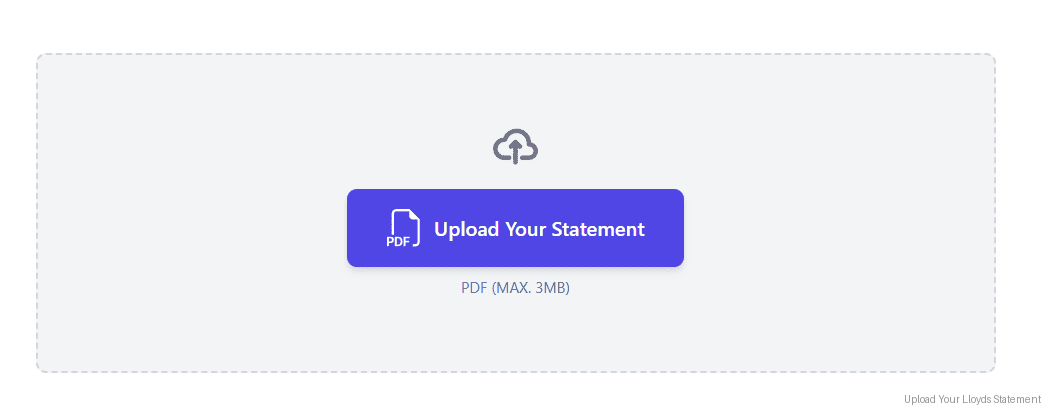
Step 3: Our smart engine converts it to a structured Excel or CSV file.
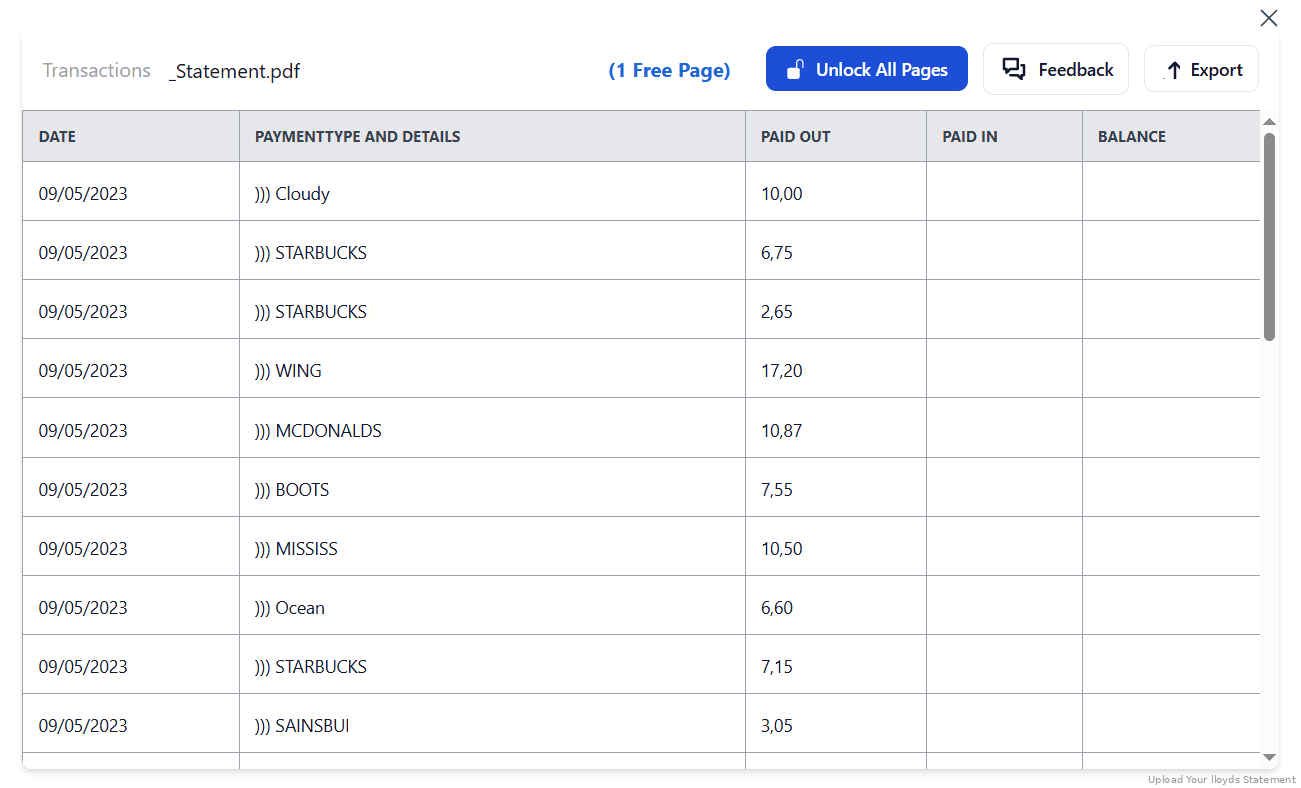
Step 4: Check result & Download your converted document instantly
Can You Convert Lloyds Statements Manually?
The core problem with copying from a Lloyds PDF is multi-line transaction descriptions. Lloyds frequently wraps longer payment references and transaction details across two or three lines. Paste that into Excel, or run it through a basic converter, and each wrapped line becomes its own row: orphaned description fragments, amounts misaligned from their transactions, and a spreadsheet needing extensive manual repair.
Assembling a year from the native export is no better. Five files minimum because of the 90-day quirk, more if you cross the 150-transaction cap, and every one named exportStatements-xx.csv with nothing to identify the account or period. You open each file individually just to work out which is which, then merge them while praying no day fell through a gap.
An automated converter joins the wrapped descriptions, keeps amounts with their transactions, normalises DD/MM/YYYY dates, and takes whole statements at once, which is why the four-step method above beats the file-juggling entirely.
Related Guides
More UK Bank Guides:
Frequently Asked Questions
How do I download my Lloyds transactions in CSV ?
On a desktop browser, open "Statement options" above your transactions and select "Export transactions (CSV, QIF)", then choose a date range. It's limited to 90 days and 150 transactions per file, covering the last 12 months only. For a full statement, download the PDF and convert it with StatementSheet.
Why is a year of transactions five files, not four ?
Lloyds' interface says three months per download, but it actually means 90 days. Four files leave five or six days missing from the year. You need five, or more if any period exceeds the 150-transaction cap.
Can I export CSV from the Lloyds app ?
No. The Lloyds and TSB mobile apps don't allow CSV downloads; it must be done on a desktop browser. The app can download PDF statements, though, going back at least 10 years, and those convert on any device.
Does it support Lloyds credit cards and business accounts ?
Yes. StatementSheet works with most Lloyds personal, joint, and business accounts, including credit card statements, Online for Business and Commercial Banking Online, as well as Halifax and Bank of Scotland.
Can it handle scanned paper statements ?
Absolutely. Clear scans from paper statements are supported. The tool uses advanced OCR (Optical Character Recognition) to interpret and convert the data.
How far back do Lloyds statements go ?
The mobile app gives immediate access to at least 10 years of PDF statements, free of charge. The CSV export, by contrast, only reaches the last 12 months of transactions.
Tips for Organising Your Lloyds Bank Statements
Once you've converted your Lloyds statements into Excel or CSV format, take full advantage of your data:
- Rename files immediatelyNative exports arrive as exportStatements-xx.csv with no account or date in the name. Rename each one as you download it, or you'll be opening files individually just to identify them.
- Check for gaps at the 90-day boundariesIf you assembled a year from four exports, five or six days are missing. Verify the running balance carries across each file boundary before filing anything with HMRC.
- Look for orphaned description rowsBecause Lloyds wraps references across two or three lines, a poor conversion leaves rows with text but no amount. Sort by the amount column and inspect the blanks.
- Use pivot tables in ExcelGenerate custom summaries from your Lloyds account activity, ideal for budgeting, VAT work or year-end accounting.
- Store securely using cloud storageProtect your records for tax season, audits, or mortgage applications using services like Dropbox or OneDrive.
Troubleshooting Common Lloyds Conversion Issues
- Days are missing from your tax yearLloyds' "three months" is 90 days. Four downloads leave five or six days uncovered. Use five files, or convert the PDF statements which have no such gap.
- Your export stops mid-periodEach CSV is capped at 150 transactions. A busy business account hits that in weeks. Split the range further, or convert the statement PDF instead.
- You can't find Export in the appIt isn't there. CSV export is desktop browser only. The app downloads PDF statements, which is arguably the better route anyway.
- Rows with a description but no amountLloyds wraps payment references across two or three lines. Each wrapped line became its own row. A bank-specific converter joins them back together.
Final Thoughts: Convert, Analyze, and Take Control
Lloyds does export CSV and QIF. It just caps each file at 90 days and 150 transactions, restricts you to the last 12 months, refuses to work on mobile, and names every download exportStatements-xx.csv.
With StatementSheet, converting your Lloyds bank statements is fast, secure, and effortless: no file jigsaw, no missing days, wrapped descriptions rejoined, and the full 10-year PDF archive within reach.
Ready to convert your Lloyds bank statement to Excel or CSV?
➡️ Visit StatementSheet today and get started in seconds!