
How to Convert Metro Bank Statements to Excel and CSV
A step-by-step guide to export your Metro Bank PDF statements into spreadsheet-ready formats.
Managing your financial data efficiently is crucial whether you're running a business, managing your household budget, or preparing for Self Assessment with HMRC. Metro Bank does offer a CSV export, but plenty of customers never find it, and plenty more click the button only to have nothing happen. If you've ever searched for "download Excel statements Metro Bank" or "Metro Bank CSV statement", you're not alone.
This article explains exactly where Metro Bank's export lives, why it often fails silently, and how StatementSheet converts your PDF statements into Excel or CSV when the native route falls short.
Can You Download Metro Bank Statements Directly in Excel or CSV?
Short Answer: yes for transactions, and it's easier to miss than to use.
Metro Bank publishes an official user guide called "Exporting Transaction Data", and its online banking has a dedicated transaction and statement export tour. In practice: log in, go to the Accounts page, select a month, and you'll see a link reading "Export transactions to CSV". It's a one-click export. The file carries the transaction date, the sender or receiver name, the reference applied by the sender, Metro Bank's own back office reference (something like FT151068NJG2), a signed value (negative or positive) and the running balance.
So why do so many people conclude it doesn't exist? Two reasons. The link is buried on the Accounts page rather than in the statements section, so it's easy to press the download button before the options are even revealed. And the CSV opens in a pop-up: if your browser blocks pop-ups, nothing happens and you get no useful error. UK accountants regularly field this exact question from clients convinced Metro Bank has no CSV at all.
The formal statements remain PDFs. So when you need the official statement, an Excel workbook rather than a raw CSV, or a period the export won't give you cleanly, download the PDF and convert it with StatementSheet.
Why Convert Metro Bank PDF Bank Statements to Excel or CSV?
Metro Bank's native CSV works, when you can reach it. Converting the PDF statement covers the cases it doesn't:
- Get an Excel workbook, not just a raw CSVMetro Bank exports CSV or PDF, never .xlsx. If you want a formatted, multi-sheet Excel workbook rather than a comma-separated dump, conversion is the route.
- Work around the pop-up blocker problemThe CSV export opens in a pop-up window. If your browser blocks it, the download simply never arrives. Downloading the PDF statement always works, and converting it gives you the same data.
- Convert the official statement for lenders and HMRCA transaction export isn't the issued statement. For a mortgage application, an HMRC enquiry or an accountant's workpaper, the PDF statement is the document that counts, and converting it gives you both the record and the data.
- Self Assessment and Making Tax DigitalWhether you're a sole trader or property landlord, structured data simplifies filing. For a 22/23 return you need every transaction from 6 April 2022 to 5 April 2023, which rarely maps neatly onto Metro Bank's month-by-month export.
- Preserve payment types and reference codesMetro Bank statements carry specific reference codes and payment types that make reconciliation possible months later. A good conversion keeps them all rather than flattening the description.
Metro Bank CSV Export vs. PDF Statement: Which Should You Use?
Metro Bank gives you both, in different places and for different jobs.
| Feature | Export transactions to CSV | PDF statement (converted) |
|---|---|---|
| Where | Accounts page, select a month | Statements section |
| Blocked by pop-up blockers | Yes (silent failure) | No |
| Excel (.xlsx) output | No (CSV only) | Yes |
| Official record | No | Yes |
| Best for | A single recent month | Full tax years, lenders, HMRC |
Rule of thumb: for one recent month with pop-ups allowed, use the native CSV. For a full tax year, an Excel workbook, or the official statement, convert the PDF.
Why Use StatementSheet?
If you're looking for the easiest way to convert Metro Bank statements to Excel or CSV, StatementSheet is the ideal solution. Here's why:
- ✔️ Produces true Excel (.xlsx) workbooks, which Metro Bank's export never offers
- ✔️ No pop-ups required, so nothing fails silently in your browser
- ✔️ Preserves Metro Bank's back office reference codes and payment types
- ✔️ Keeps the signed transaction value and running balance intact
- ✔️ Converts a full tax year (6 April to 5 April) rather than one month at a time
- ✔️ Supports GBP (£) and UK DD/MM/YYYY dates, built for Metro Bank's format
- ✔️ OCR for scanned PDFs, works on digital and scanned statements alike
- ✔️ Compatible with Xero, QuickBooks, FreeAgent, Sage and KashFlow
Which Metro Bank Documents Can You Convert?
Metro Bank has grown rapidly across London and the South East, and is particularly popular with small businesses. StatementSheet handles:
- Metro Bank personal current account statements
- Metro Bank business and commercial account statements
- Metro Bank savings account statements
- Statements containing back office reference codes (e.g. FT151068NJG2) and payment type fields
- Digital PDFs and scanned or photographed paper statements
How to Convert Metro Bank PDF Bank Statements in Four Easy Steps
Here’s how to convert your Metro Bank PDF statements using StatementSheet:
Step 1: Download Your Metro Bank PDF Bank Statement
- Log in to your Metro Bank Online Banking
- Choose the account you wish to export
- Open Statements (also accessible from the left-hand menu)
- Select the statement period, download the PDF and save it securely
Prefer the native export? Go to the Accounts page, select a month, and click "Export transactions to CSV". Wait for the options to appear before pressing anything, and allow pop-ups in your browser, otherwise the file never downloads. Business customers can also consult Metro Bank's "Exporting Transaction Data" user guide for the full column reference.
Step 2: Upload your PDF Bank Statement

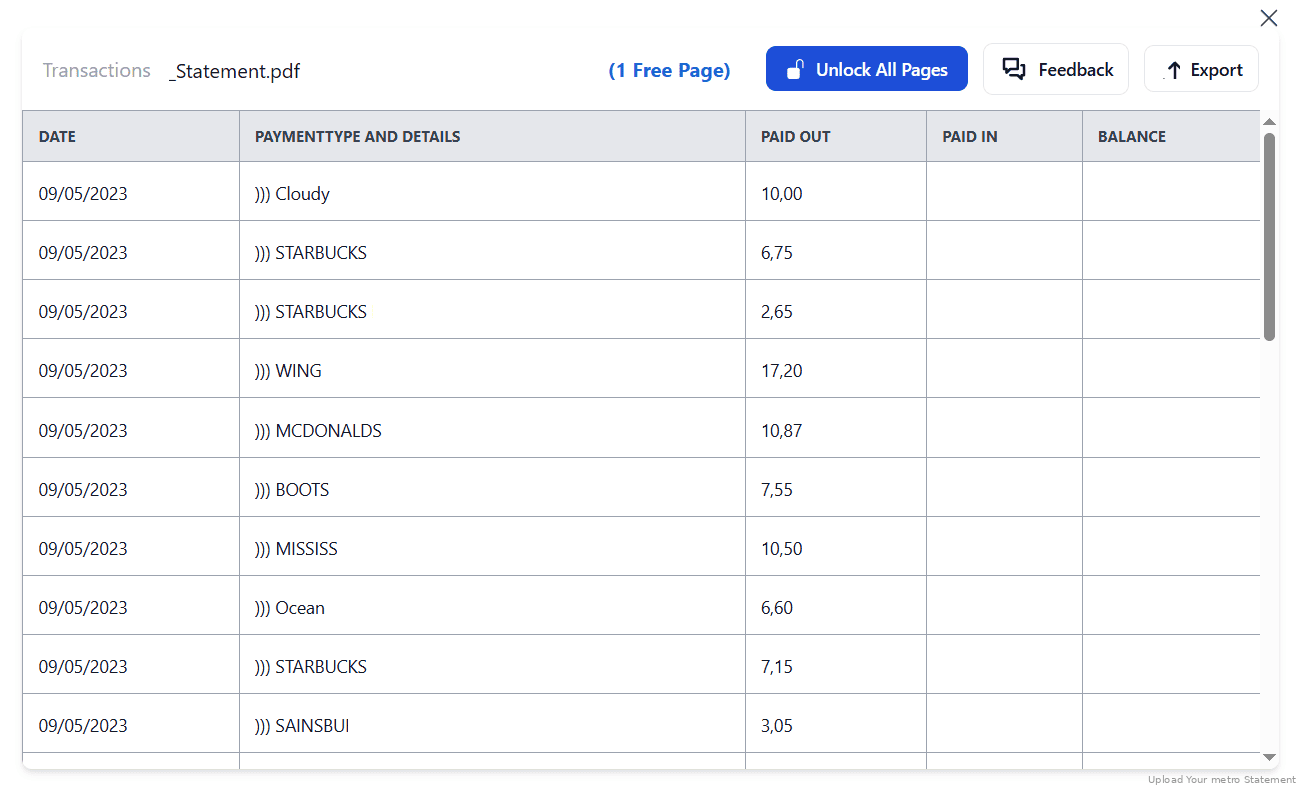
Step 3: Our smart engine converts it to a structured Excel or CSV file.

Step 4: Check result & Download your converted document instantly
Can You Convert Metro Bank Statements Manually?
You can copy from the PDF, but Metro Bank statements carry more structure than a paste preserves. Each transaction has a date, a sender or receiver name, a reference applied by the sender, Metro Bank's own back office reference, a signed value where debits are negative, and a running balance. Flatten those into one description column and you lose the fields that make reconciliation possible.
There's an import subtlety too. Accounting platforms typically recalculate the balance themselves, so the balance column should be ignored rather than mapped. And if you're stitching several months together by hand, duplicate rows (same date, description and value) slip in at the boundaries and quietly double your figures.
An automated converter keeps every field in its own column, preserves the signed values and reference codes, and lets you pull a whole tax year in one pass, which is why the four-step method above beats month-by-month exports and manual merging.
Related Guides
More UK Bank Guides:
Frequently Asked Questions
How do I download my Metro Bank transactions in CSV?
Log in, go to the Accounts page, select a month, and click the "Export transactions to CSV" link. It's a one-click export, but it's on the Accounts page rather than the statements section, which is why many people never find it.
I clicked download and nothing happened. Why?
Almost certainly pop-ups. Metro Bank's CSV opens in a pop-up window, so if your browser blocks it the file never arrives and you get no clear error. Allow pop-ups for Metro Bank Online, and wait for the options to appear before pressing anything.
Can I export Metro Bank statements to Excel?
Not as an .xlsx file. Metro Bank exports CSV or PDF only. Upload your PDF statement to StatementSheet to get a properly formatted Excel workbook.
What's in the Metro Bank CSV?
The transaction date, the sender or receiver name, the reference applied by the sender, Metro Bank's back office reference (like FT151068NJG2), a signed value where debits are negative, and the running balance. Most accounting software will recalculate the balance, so that column is usually ignored on import.
Does this work with all Metro Bank accounts?
Yes, it supports personal, business and commercial Metro Bank accounts, including savings.
Can it handle scanned PDFs?
Yes. For best results, ensure the scanned document is high-resolution and clearly legible.
Is there a fee to download Metro Bank statements?
No, Metro Bank provides PDF statement downloads free of charge via their online banking platform.
Tips for Organizing Your Metro Bank Bank Statements
Once you've converted your Metro Bank PDF statements into Excel or CSV, use these tips to make the most of your data:
- Ignore the balance column on importAccounting platforms recalculate the running balance themselves. Map the date, description and value, and leave the balance column out to avoid conflicting figures.
- Watch for duplicates at month boundariesA duplicate is any row with the same date, description and value as one you've already imported. They creep in when you merge month-by-month exports, and quietly double your totals.
- Keep the reference columnsMetro Bank's back office reference and the sender's own reference are your best match-points when tracing a payment months later. Don't strip them to tidy the file.
- Pull the full UK tax year at onceFor a 22/23 return you need 6 April 2022 to 5 April 2023. Converting the statements for that whole span beats assembling twelve monthly exports.
- Store your converted files securelyUse encrypted cloud storage like Dropbox, iCloud, or OneDrive to protect financial data and maintain access for audits or mortgage applications.
Troubleshooting Common Metro Bank Conversion Issues
- The CSV never downloadsMetro Bank's CSV opens in a pop-up. If your browser blocks pop-ups, the download silently fails. Allow pop-ups for Metro Bank Online, or download the PDF statement and convert it instead.
- You can't find the export linkIt's on the Accounts page, not in the statements section. Select a month first, then look for "Export transactions to CSV". Pressing download before the options appear does nothing.
- Your balances don't match after importYou've probably mapped the balance column. Most accounting software calculates it from the transaction values, so importing Metro Bank's balance too creates a conflict.
- Totals look doubledOverlapping monthly exports create duplicate rows with identical date, description and value. Check the boundaries between months, or convert a single continuous statement instead.
Final Thoughts: Take Control of Your Financial Data
Metro Bank does have a one-click CSV export. It's just hidden on the Accounts page, limited to CSV or PDF, and quietly defeated by a pop-up blocker, which is why so many customers believe it doesn't exist at all.
With StatementSheet, converting your Metro Bank PDF statements into clean Excel or CSV files is fast, reliable, and works no matter how your browser is configured. Whether you're managing business banking, handling personal finances, or preparing for HMRC Self Assessment, you get total control over your records.
Stop struggling with static PDFs and silent download failures.
➡️ Ready to get started? Convert PDF Bank Statements with StatementSheet today.