
How to Convert Capital One Bank Statements to Excel and CSV
A step-by-step guide to export your Capital One bank statements into spreadsheet-ready formats.
Managing personal and business finances in the U.S. often requires more than simply viewing static PDF statements. If you're a Capital One customer, you might be asking: does Capital One allow data importation in Excel? or how to download Capital One statement to Excel? The answer is more nuanced than a simple yes or no, and the 90-day export limit catches most people out. With the right bank statement converter like StatementSheet, you can transform your PDF statements into actionable Excel and CSV files.
This guide walks you through exactly what Capital One lets you export, where it stops, and how to get credit card and checking account data into Excel or CSV. Whether you're organizing tax documents, tracking expenses, or using QuickBooks for your small business, learning to convert bank statements to excel format simplifies everything.
Can You Download Capital One Bank Statements Directly in Excel or CSV?
Short Answer: partly, and the 90-day window is the catch.
Capital One does offer a native export. Sign in on a desktop browser, open the account's Activity page, set a date range and you can download transactions as CSV, and QFX (Quicken) or OFX for some account types. The constraint that catches most users off guard: these native downloads only cover a rolling 90-day window of recent activity. You cannot pull a native export for transactions from six months ago or last year, even though Capital One stores far more than that.
Three more limits matter. The export is desktop only, it isn't available in the Capital One mobile app. It's a live transaction feed, not your official monthly statement, so statement summaries, fee breakdowns and interest details are missing, and running balances often aren't included. And while the website shows about two years of past transactions, the full seven years of history lives only in the statement PDFs.
So for anything older than 90 days, for the official statement, or for credit card layouts the native CSV doesn't fit, the reliable route is to download the monthly PDF from Capital One's 7-year archive and convert it with StatementSheet.
Why Convert Capital One PDF Bank Statements to Excel or CSV ?
Capital One's native CSV is genuinely useful, but only for the last three months. Here are the key reasons to convert your Capital One PDF statements instead:
- Reach past the 90-day wallThe native CSV, QFX and OFX downloads stop at 90 days, while Capital One keeps 7 years of statement PDFs. If you need last year's data for an IRS audit or a full tax year, converting the PDFs is the only path.
- Get the balances and totals the CSV omitsThe Activity export is a live transaction feed, not the statement. It leaves out statement summaries, fee breakdowns, interest details and often the running balance, all of which a reconciliation or loan application needs.
- Small Business AccountingUploading clean CSV files to QuickBooks or other accounting software saves hours of manual data entry, including for Spark Business statements with employee card breakdowns.
- Reconcile checking and card data togetherCapital One exports credit cards with separate Debit and Credit columns but 360 Checking with a single signed Amount column. Converting both to one consistent layout saves remapping every time you combine them.
- Bank Credit Card ManagementMonthly breakdowns help you detect fees, double charges, or fraud more efficiently.
Capital One Activity Export vs. PDF Statement: Which Should You Use?
Capital One gives you two different data products. The right one depends on how far back you need and whether you need the official statement.
| Feature | Activity export (CSV/QFX/OFX) | PDF statement (converted) |
|---|---|---|
| History covered | Rolling 90 days only | Up to 7 years of statements |
| Where | Desktop browser only (no mobile app) | Statements section, web or app |
| Includes balances & fees | No (live transaction feed) | Yes (summaries, fees, interest) |
| Column layout | Differs: cards Debit/Credit, 360 signed Amount | One consistent layout after conversion |
| Best for | The last three months | Audits, tax years, reconciliation |
Rule of thumb: within 90 days, use the Activity export; beyond it, or when you need the official statement with balances, convert the PDF to CSV (for accounting imports) or Excel (for analysis).
Why Use StatementSheet ?
If you’re looking to convert Capital One bank statements to Excel or CSV quickly and accurately, StatementSheet is the ultimate solution. This automated tool uses smart parsing and OCR technology to extract transaction details and convert scanned or digital PDFs into structured spreadsheets, including the history the 90-day export can't reach.
- ✔️ Reaches history beyond the 90-day native export (statement PDFs go back 7 years)
- ✔️ Handles credit card statements grouped by Purchases, Payments and Credits, Fees and Interest
- ✔️ Normalises the MM/DD dates on card statements back to full dates with the year
- ✔️ Turns Debit/Credit columns and signed Amount columns into one consistent layout
- ✔️ Keeps running balances and statement totals the Activity CSV omits
- ✔️ Works with 360 Checking, 360 Savings, Venture, Quicksilver, Savor and Spark Business
- ✔️ Accurate extraction from scanned and digital PDFs, outputs clean .xlsx and .csv
- ✔️ Integrates with QuickBooks, FreshBooks, and Xero US
Which Capital One Documents Can You Convert?
StatementSheet works across the full range of Capital One statement types, including:
- Capital One 360 Checking and 360 Savings statements (chronological, running balances)
- Venture, Venture X and Quicksilver credit card statements (grouped by transaction type)
- Savor and SavorOne statements (rewards summaries ignored, data extracted)
- Spark Business statements, including employee card breakdowns
- Digital PDFs and scanned or photographed paper statements
How to Convert Capital One PDF Bank Statements in Four Easy Steps
Here’s how you can convert your Capital One PDF bank statements
Step 1: Download Your Capital One PDF Bank Statement
- Log in to your Capital One online banking portal
- Navigate to the account (360 Checking, 360 Savings, or a credit card)
- Open the Statements section and select the statement period (month)
- Download the PDF and save it to your device (up to 7 years of statements are available)
If you only need the last three months, you can instead use the native export: sign in on a desktop browser (not the mobile app), open the account's Activity view, set your date range and choose CSV, QFX or OFX. Remember this covers a rolling 90-day window only, omits running balances and statement totals, and large ranges sometimes time out, so pull month by month. Everything older comes from the PDF.
Step 2: Upload your PDF Bank Statement

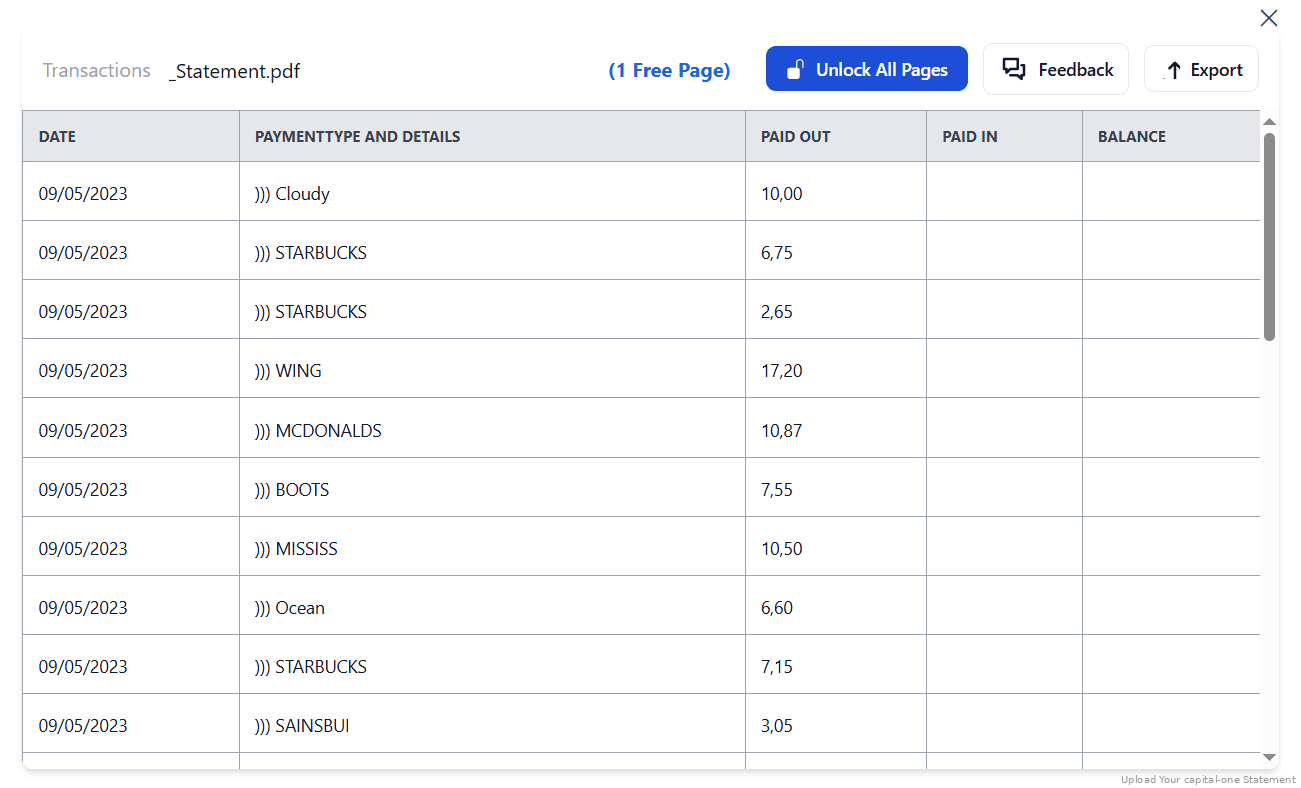
Step 3: Our smart engine converts it to a structured Excel or CSV file.

Step 4: Check result & Download your converted document instantly
Can You Convert Capital One Statements Manually?
Capital One statements are cleaner than many banks', but the account types behave very differently. Credit card statements group transactions into Purchases, Payments and Credits, Fees, and Interest Charged, each with its own subtotal, rather than listing everything chronologically. Copying those sections into one sheet by hand means the subtotals end up looking like transactions and the chronological order is lost.
Two more traps. Card statements abbreviate dates to MM/DD (each statement covers a single billing cycle, so the year is dropped), which Excel will happily assign to the wrong year. And because cards use separate Debit and Credit columns while 360 Checking uses one signed Amount column, combining accounts by hand means remapping columns every time.
An automated converter recognises the card sections and classifies each transaction type, restores the year in the dates, and normalises everything into a consistent layout with running balances, which is why the four-step method above is the reliable route for a full tax year or a multi-account reconciliation.
Related Guides
More American Bank Guides:
Frequently Asked Questions
Does Capital One allow data importation in Excel ?
Partly. On a desktop browser you can download recent transactions as CSV (and QFX or OFX for some accounts) and open them in Excel, but only for a rolling 90-day window, and without balances or statement totals. For full statements or older history, convert the PDF with StatementSheet.
How far back can I export Capital One transactions ?
The native CSV, QFX and OFX downloads cover a rolling 90 days only. The website shows about two years of past transactions, and your statements hold up to seven years of history, so anything older than three months comes from converting the PDF statement.
Why can't I find the download button in the Capital One app ?
The export isn't available in the mobile app. Sign in to capitalone.com from a desktop browser and open the account's Activity view. From the app you can still save the statement PDF and convert it later.
Is it safe to use an online tool to convert Capital One statements?
Yes. StatementSheet follows strict data encryption practices and automatically deletes your file after processing. It complies with GDPR and U.S. data privacy guidelines.
Does this work for Capital One credit card statements too ?
Absolutely. Card statements group transactions into Purchases, Payments and Credits, Fees and Interest, and abbreviate dates to MM/DD. StatementSheet classifies each type and restores full dates for easier reconciliation.
Can I use the converted CSV in QuickBooks ?
Yes. The CSV format from StatementSheet is compatible with QuickBooks, allowing smooth import for tax prep or ongoing bookkeeping.
Do I need to install anything ?
No installation required. StatementSheet is a fully online converter tool accessible through your browser.
Will it work with scanned paper statements ?
Yes. Thanks to built-in OCR (Optical Character Recognition), even scanned PDF files are accurately converted.
Does Capital One charge for downloading PDF bank statements ?
No, PDF statements are free to download from the Capital One online banking portal, and your statements include up to seven years of transaction history.
Tips for Organizing Your Capital One Statements After Conversion
Once you've converted your Capital One statements, here’s how to make the most of them:
- Add a Source column when mixing exports and statementsIf you combine the 90-day web export with converted PDFs, tag each row with its source and use one signed Amount convention. Then check the ending balance ties to the statement's closing balance.
- Watch the year on credit card datesCard statements show MM/DD without the year. When a billing cycle spans December and January, confirm the converted rows landed in the right year before filing.
- Use pivot tables in ExcelQuickly summarize monthly activity, analyze totals by vendor, or visualize cash inflow and outflow.
- Convert each account separately, then align the columnsCards and 360 accounts use different column structures. Convert them one at a time, then bring everything into the same layout in your main workbook.
- Store your converted files securelyUse encrypted cloud platforms like OneDrive, iCloud, or Dropbox to ensure protection and accessibility, and to keep records beyond the 7-year online window.
Troubleshooting Common Capital One Conversion Issues
- Export won't go back more than three monthsThat's the hard limit: Capital One's native CSV, QFX and OFX downloads only cover a rolling 90-day window. For older months, download the statement PDFs (7 years available) and convert them.
- No download option on your phoneNeither the app nor the mobile site offers the export. Switch to a desktop browser, or save the statement PDF from the app and convert it when you're back at a computer.
- Card transactions land in the wrong yearCredit card statements abbreviate dates to MM/DD because each covers one billing cycle. Spreadsheets guess the year. Check cycles that straddle December and January in particular.
- Subtotals imported as transactionsCard statements group rows into Purchases, Payments and Credits, Fees and Interest Charged, each with its own subtotal. Make sure those subtotal lines didn't end up in your transaction rows.
Final Thoughts: Gain Full Control of Your Financial Records
Capital One's native export is handy for the last 90 days, but it stops there, skips balances and totals, and isn't available on mobile. Converting your Capital One PDF statements into Excel or CSV is not just about convenience, it's about control. With StatementSheet, you can stop wasting time on manual data entry and start using your bank statements the smart way.
Whether you're a U.S. business owner prepping for tax season or a consumer who wants better oversight of your bank account, converting your Capital One PDF bank statements has never been easier.
Ready to convert your Capital One bank statement to Excel or CSV ?
➡️ Visit StatementSheet today and streamline your financial record-keeping in just minutes.