
How to Convert Zenith Bank Statements to Excel and CSV
A step-by-step guide to turning your Zenith Bank statements into usable spreadsheet formats, built for Nigeria.
Zenith Bank handles statements differently from most banks. You do not download one. You open the mobile app, tap History, choose Email Statement, set your date range and enter an email address. The statement is then sent to your inbox as a PDF. Convenient for sharing, awkward for reconciling.
This guide explains how Zenith's Email Statement flow actually works, what you receive at the end of it, and how StatementSheet turns that PDF into a clean Excel or CSV file.
Can You Download Zenith Bank Statements Directly in Excel or CSV?
Short answer: no. Zenith sends your statement to your email address as a PDF. There is no CSV or Excel option in the app.
Zenith Bank, founded in 1990 and Nigeria's largest bank by market capitalisation, does not offer a conventional download button for statements. Instead, the mobile app uses an Email Statement flow: you tap History at the top right, select Email Statement, choose the date range you want, enter your email address, tap Send Statement and authorise with your PIN.
What arrives in your inbox is a PDF. There is no CSV, Excel or accounting format anywhere in that flow. The app does show a mini-statement on screen for quick checks, but that is a view, not a file. For anything you need to total, the emailed PDF is what you are working with.
Corporate customers get more room to move: the Zenith Trade Portal supports downloading transactions and multi-bank account reporting. But for personal and SME customers, the path runs through email, and the destination is a PDF. Converting it is the direct route to a spreadsheet you can reconcile.
Why Convert Zenith Bank PDF Statements to Excel or CSV?
The emailed statement is a document, not data. Converting it changes what you can do:
- Get the CSV the app does not offerThe Email Statement flow delivers a PDF and nothing else. There is no CSV, Excel, QIF or OFX option. Conversion produces exactly the file Zenith does not provide.
- Turn an inbox of statements into one sheetBecause statements arrive by email rather than downloading into a folder, they scatter across your inbox. Converting them and sorting by date rebuilds a continuous record.
- Prepare loan and visa applications properlyNigerian lenders and embassies routinely ask for months of statements. A converted spreadsheet lets you check inflows, outflows and closing balances before you submit anything.
- Reconcile business accounts without retypingSME owners tracking naira inflows across suppliers and customers need columns, not paragraphs. A converted file imports into Sage, QuickBooks or a spreadsheet directly.
- Keep records for FIRS and your accountantClean transaction data makes tax preparation with the Federal Inland Revenue Service far simpler, and lets your accountant work from figures rather than screenshots.
Emailed PDF vs. Converted File: What Changes?
Zenith gives you one output. Here is what conversion adds to it.
| Critère | Zenith emailed statement (PDF) | Converted file (Excel / CSV) |
|---|---|---|
| How you receive it | By email, after a PIN authorisation | By converting that PDF |
| Sortable and filterable | No | Yes |
| Totals and pivot tables | No | Yes |
| Imports into accounting software | No | Yes, as separate columns |
| Best for | Sharing and record keeping | Reconciliation, loans, FIRS filing |
Simple rule: For sending a statement to a lender or keeping a record, the emailed PDF is the document. For anything you need to total, convert it.
Why Use StatementSheet?
StatementSheet reads your Zenith Bank PDF statement and turns every transaction line into a structured spreadsheet row, with no copying, pasting or manual cleanup.
- ✔️ Produces the CSV and .xlsx workbook the Zenith app does not offer
- ✔️ Works from statements received through the Email Statement flow
- ✔️ Merges scattered monthly emails into one continuous spreadsheet
- ✔️ Columns for Date, Description, Debit, Credit and Balance, with wrapped descriptions merged
- ✔️ Naira amounts returned as numbers you can calculate with
- ✔️ Ready for Sage, QuickBooks and Excel
- ✔️ Scanned statements handled by OCR, with files processed securely
Which Zenith Bank Documents Can You Convert?
Zenith serves retail, SME and corporate customers in Nigeria and beyond. StatementSheet handles:
- Zenith savings and current account statements in PDF
- Zenith domiciliary account statements
- Zenith credit and debit card statements
- Corporate account statements from the Zenith Trade Portal
- Statements from Zenith operations in Ghana, the UK and other markets, plus scanned copies
How to Convert Zenith Bank PDF Statements in Four Easy Steps
Here is how to turn your Zenith Bank PDF statements into Excel or CSV:
Step 1: Request Your Zenith Statement by Email
- Open the Zenith Bank mobile app and log in
- Tap History at the top right of the screen, then choose Email Statement
- Select the date range you need and enter your email address
- Tap Send Statement, authorise with your PIN, then save the PDF from your inbox
A security reminder worth repeating: Zenith will never ask for your card details, PIN, token codes or login information by call, SMS or email. Only request statements through the official app or internet banking, and be wary of messages claiming to send statements you did not ask for.
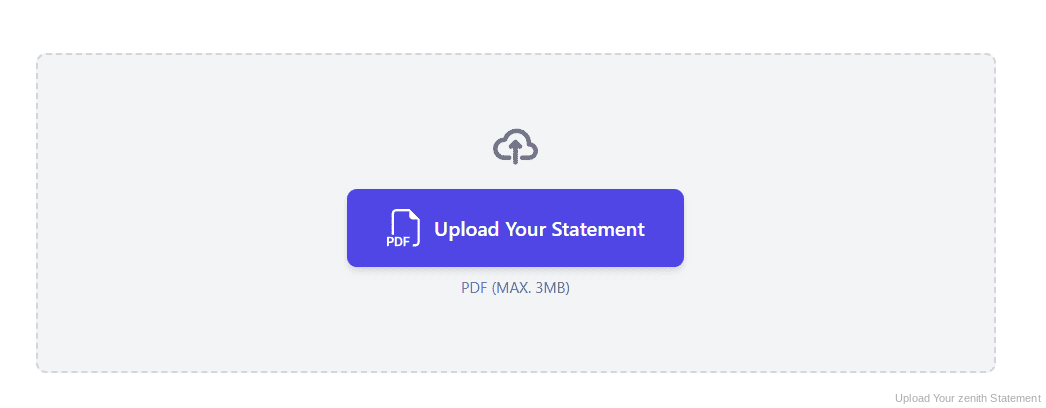
Step 2: Upload Your PDF Bank Statement
Step 3: Our engine converts it into a structured Excel or CSV file
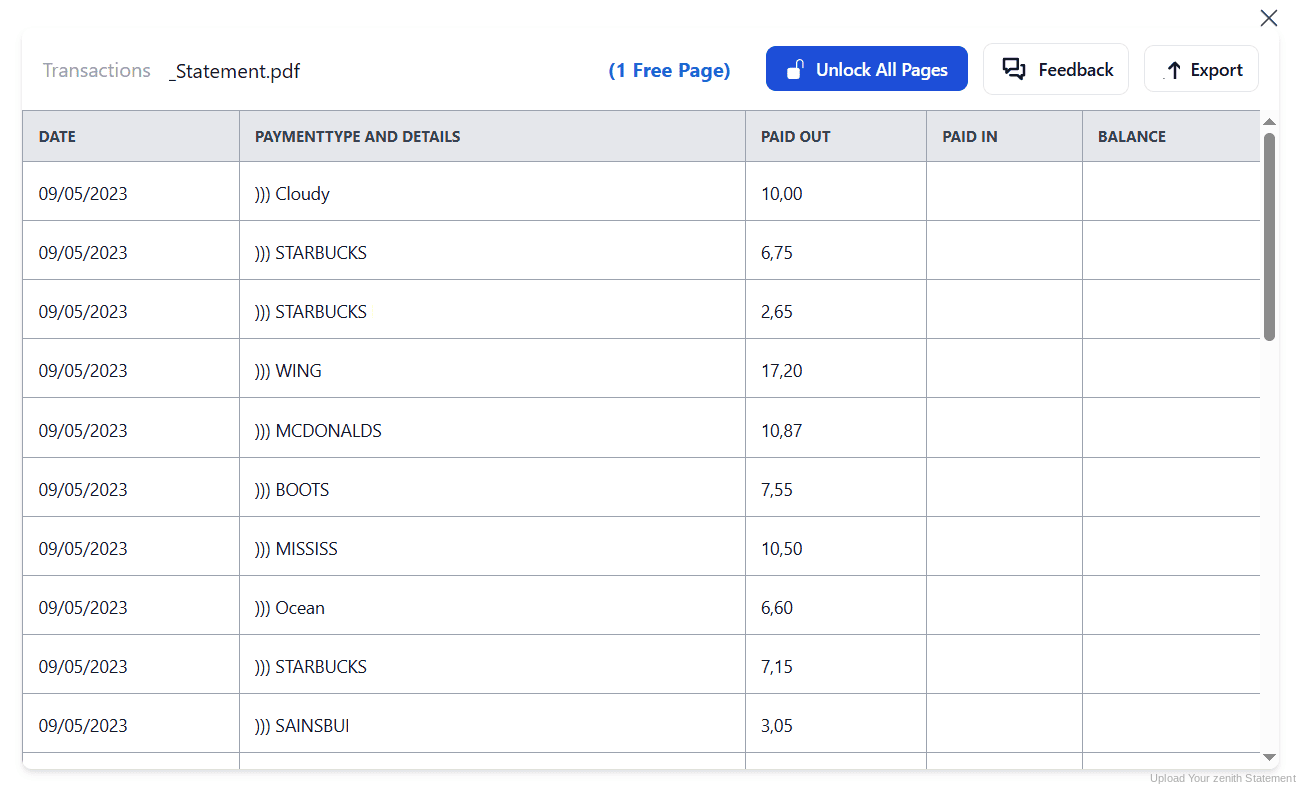
Step 4: Check the result and download your converted file instantly
Can You Convert Zenith Bank Statements Manually?
With no export in the app, copying by hand is the only alternative. And because statements arrive by email rather than downloading in a batch, a full year means finding twelve separate messages, opening twelve PDFs and retyping each one.
The copying itself is the usual struggle: columns drifting at page breaks, transaction narrations wrapping onto a second line, and naira amounts arriving as text rather than numbers so your totals silently fail.
An automatic converter reads each statement, merges wrapped narrations and rebuilds Date, Description, Debit, Credit and Balance as real columns. Check your totals against the closing balance afterwards to confirm the result.
Related Guides
More Nigeria Bank Guides:
Frequently Asked Questions
How do I get my Zenith Bank statement?
Open the Zenith mobile app, tap History at the top right, choose Email Statement, select your date range, enter your email address, tap Send Statement and authorise with your PIN. The statement is emailed to you as a PDF.
Can I export Zenith transactions to CSV or Excel?
No. The Email Statement flow delivers a PDF only, with no CSV, Excel, QIF or OFX option. To get a spreadsheet, convert the emailed PDF with StatementSheet.
Why does my statement arrive by email instead of downloading?
That is how Zenith's app is designed. Rather than a download button, it sends the statement to an email address you specify, after you authorise the request with your PIN.
Does the Zenith app show my transactions on screen?
Yes, the app displays a mini-statement for quick checks. But that is a view rather than a file, so for a full period you still need the emailed PDF.
Is there a better option for corporate accounts?
Yes. The Zenith Trade Portal, aimed at corporate customers, supports downloading transactions and multi-bank account viewing and reporting, which personal banking does not offer.
How do I avoid statement-related scams?
Zenith will never request your card details, PIN, token codes or login credentials by call, SMS or email. Request statements only through the official app or internet banking, and ignore unsolicited messages.
Tips for Organizing Your Converted Zenith Statements
Once your statements are converted to Excel or CSV, here is how to get the most out of them:
- Send statements to one dedicated email addressSince the app asks for an email address each time, use the same one consistently and file those messages in a single folder. Otherwise a year of statements scatters across your inbox.
- Request wide date ranges in one goThe flow lets you set any date range. Requesting six or twelve months at once means fewer emails to chase and one larger PDF to convert, rather than twelve small ones.
- Reconcile against the closing balanceCompare your converted totals with the opening and closing balances printed on the statement. If they disagree, a row is missing or duplicated.
- Prepare early for loan or visa requestsLenders and embassies often ask for several months at short notice. Keeping a converted spreadsheet up to date means you can answer immediately rather than requesting statements under pressure.
- Keep records for six yearsNigerian tax rules require business records to be kept for six years. Keep the original PDF: in a review it is the source document that counts, not your spreadsheet.
Troubleshooting Common Zenith Bank Conversion Issues
- You cannot find a download buttonThere is not one in the app. Zenith emails your statement instead: tap History, choose Email Statement, set the range and enter your email address.
- Your statement never arrivedThe request only completes once you authorise it with your PIN. Check that step, confirm the email address you entered, and look in your spam folder before requesting again.
- Your mini-statement does not cover enoughThe mini-statement in the app is a quick on-screen view, not a full record. For a complete period, use Email Statement and convert the PDF you receive.
- Naira amounts are not adding upPasting from a PDF usually turns amounts into text. A clean conversion returns them as numbers you can calculate with straight away.
Final Thoughts: Take Control of Your Financial Data
Zenith Bank sends statements rather than letting you download them: request through the app, authorise with your PIN, and a PDF lands in your inbox. Useful for sharing, but there is no CSV or Excel anywhere in that flow.
With StatementSheet, your Zenith PDF statements become clean Excel or CSV files: separate columns, merged narrations, naira amounts that calculate properly, ready for your accountant, your lender or FIRS.
Ready to convert your Zenith Bank statement to Excel or CSV?
➡️ Ready to convert bank statement PDF to Excel? and turn an inbox of statements into one sheet.