
How to Convert Access Bank Statements to Excel and CSV
A step-by-step guide to turning your Access Bank statements into usable spreadsheet formats, built for Nigeria.
Access Bank gives you two ways to get a statement, and they behave differently. Through internet banking you choose your document format and download it. Through the AccessMore app you enter an email address and the statement is sent to you. Same bank, same account, two different outcomes.
This guide explains what each route actually gives you, what changed for former Diamond Bank customers, and how StatementSheet turns your Access Bank PDF statements into clean Excel or CSV files.
Can You Download Access Bank Statements Directly in Excel or CSV?
Short answer: partly. Internet banking lets you choose a document format, but the AccessMore app emails you a PDF instead.
Access Bank, founded in 1989 and now serving around sixty million customers across twenty-four markets, offers two separate routes. In internet banking you open Account History, select the account, set a date range and choose your preferred document format before downloading or viewing it. That path does support a choice of format, including an Excel option and a signed and stamped PDF.
The app works differently. In AccessMore you go to the main menu, tap Show All, then Generate Statement, set start and end dates, enter an email address and tap Generate. The statement is then emailed to you, as a PDF. Convenient on the move, but it takes the format choice out of your hands.
One more thing worth knowing: Access Bank completed its merger with Diamond Bank in March 2019. Customers who banked with Diamond may hold older statements under that name, in a different layout, alongside newer Access Bank ones. Converting both into the same structure is how you rebuild a continuous history.
Why Convert Access Bank PDF Statements to Excel or CSV?
The two routes give different results, and PDFs dominate either way:
- Turn emailed app statements into dataThe AccessMore app emails you a PDF rather than letting you pick a format. Converting it gives you the spreadsheet the app never offered.
- Use stamped PDFs for applications and reconciliationThe signed and stamped PDF is what lenders and embassies accept, and it carries the bank's authentication. Converting a copy lets you reconcile from the same document you submitted.
- Rebuild history across the Diamond Bank mergerIf you banked with Diamond Bank before the 2019 merger, your records span two names and two layouts. Converting them into the same columns restores one continuous history.
- Consolidate accounts across marketsAccess Bank operates in Ghana, Rwanda, Zambia, the UK and beyond, and statement layouts differ by market. A common column structure is what makes them comparable.
- Keep records for FIRS and your accountantClean transaction data makes tax preparation with the Federal Inland Revenue Service far simpler, and lets your accountant work from figures rather than screenshots.
Internet Banking vs. AccessMore App: Which Should You Use?
Access Bank's two routes do not deliver the same thing.
| Critère | Internet Banking | AccessMore app |
|---|---|---|
| How you receive it | Download or view directly | Emailed to an address you enter |
| Choice of document format | Yes, you select before downloading | No, you receive a PDF |
| Signed and stamped option | Yes | Not offered in the app flow |
| Works on the move | Less convenient on mobile | Yes, built for it |
| Best for | Applications and format control | Quick requests away from a computer |
Simple rule: Use internet banking when you need a specific format or a stamped copy. Use the app when you are out and just need the statement sent, then convert the PDF you receive.
Why Use StatementSheet?
StatementSheet reads your Access Bank PDF statement and turns every transaction line into a structured spreadsheet row, with no copying, pasting or manual cleanup.
- ✔️ Converts statements emailed by the AccessMore app
- ✔️ Handles signed and stamped PDFs used for loan and visa applications
- ✔️ Rebuilds continuous history across Access Bank and legacy Diamond Bank statements
- ✔️ Columns for Date, Description, Debit, Credit and Balance, with wrapped narrations merged
- ✔️ Naira amounts returned as numbers you can calculate with
- ✔️ Ready for Sage, QuickBooks and Excel
- ✔️ Scanned statements handled by OCR, with files processed securely
Which Access Bank Documents Can You Convert?
Access Bank serves retail, SME and corporate customers across Nigeria and Africa. StatementSheet handles:
- Access Bank savings and current account statements in PDF
- Signed and stamped statements for loan and visa applications
- Statements emailed through the AccessMore app
- Legacy Diamond Bank statements from before the 2019 merger
- Statements from Access Bank operations in Ghana, Rwanda, Zambia and the UK
How to Convert Access Bank PDF Statements in Four Easy Steps
Here is how to turn your Access Bank PDF statements into Excel or CSV:
Step 1: Get Your Access Bank Statement
- Log in to Access Bank Internet Banking and click Account History
- Select the account, then choose your date range and preferred document format
- Download or view the statement, selecting the signed and stamped PDF if you need an official copy
- Alternatively, in AccessMore tap Show All, then Generate Statement, set the dates, enter your email and tap Generate
The two routes are not equivalent. Internet banking lets you choose the document format and request a signed and stamped copy; the AccessMore app emails you a PDF instead. If you need an official statement for a lender or an embassy, use internet banking or visit a branch.
Step 2: Upload Your PDF Bank Statement

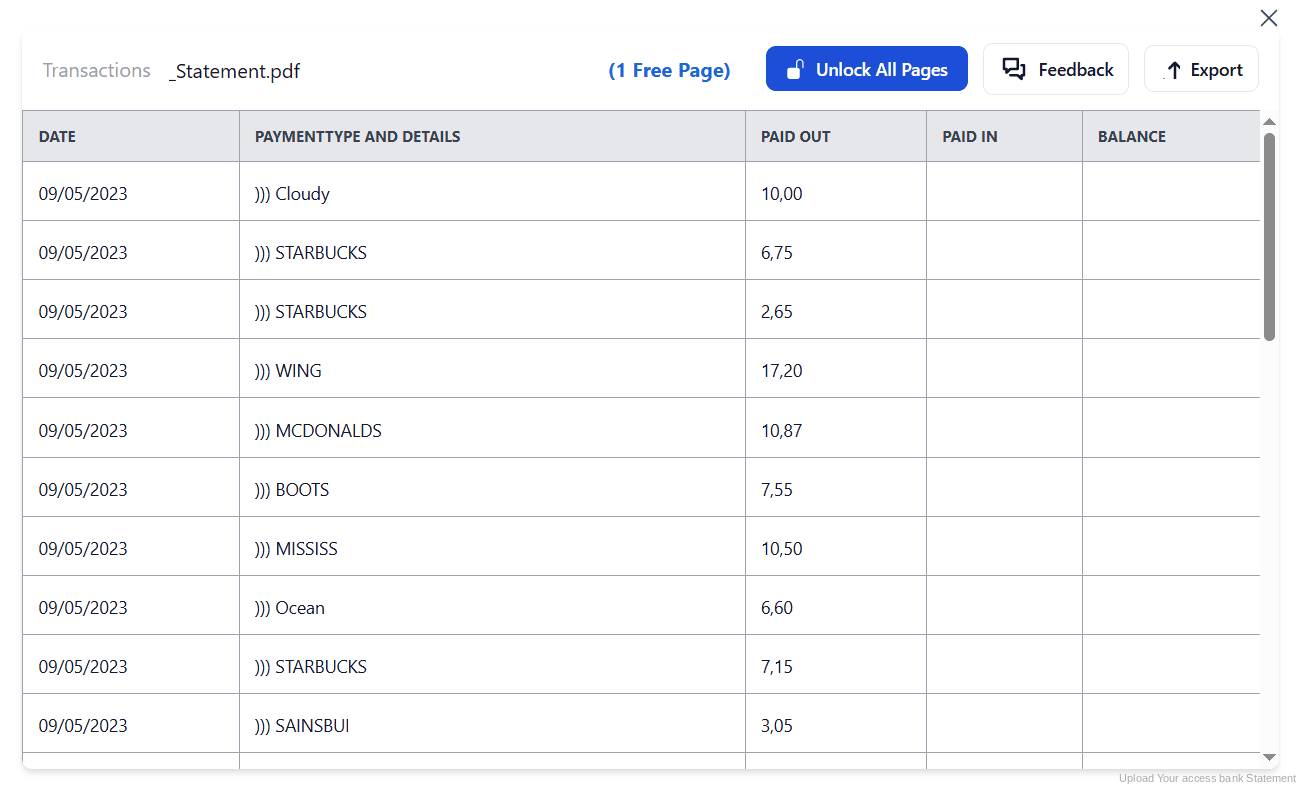
Step 3: Our engine converts it into a structured Excel or CSV file

Step 4: Check the result and download your converted file instantly
Can You Convert Access Bank Statements Manually?
It depends which route you used, and neither makes manual work easy. Statements emailed from AccessMore arrive as PDFs, so there is nothing to copy but the document itself. And the stamped PDFs you request for applications are, by design, images of an official record rather than a data file.
If your history spans the Diamond Bank merger, you are dealing with two different layouts as well. Retyping them into a single sheet means reconciling column positions by hand before you can total anything, with naira amounts arriving as text along the way.
An automatic converter reads each statement, merges wrapped narrations and rebuilds Date, Description, Debit, Credit and Balance as real columns, whichever layout it started from. Check your totals against the closing balance afterwards to confirm the result.
Related Guides
More Nigeria Bank Guides:
Frequently Asked Questions
How do I get my Access Bank statement?
Through internet banking, click Account History, select the account, set your date range and preferred document format, then download or view it. Alternatively, in the AccessMore app tap Show All, then Generate Statement, set dates, enter your email and tap Generate.
Why does the AccessMore app email my statement?
That is how the app flow is built: it asks for an email address and sends the generated statement there, rather than downloading it to your device. Internet banking is the route that lets you choose a format directly.
Can I get a signed and stamped Access Bank statement?
Yes. When selecting your export format in internet banking, choose the signed and stamped PDF option. This is the version lenders, embassies and visa applications generally require.
I banked with Diamond Bank. Are my old statements supported?
Yes. Access Bank completed its merger with Diamond Bank in March 2019, and legacy Diamond statements convert the same way, so you can rebuild a continuous history across both names.
Can I export Access Bank statements to Excel?
Internet banking lets you select your preferred document format, which includes an Excel option. For a properly formatted workbook, or when working from a stamped PDF, converting the PDF gives a cleaner result.
Does this work with Access Bank statements from Ghana or Rwanda?
Yes. Access Bank operates across several African markets and the UK, and the layouts differ slightly, but the same conversion applies with a consistent column structure.
Tips for Organizing Your Converted Access Bank Statements
Once your statements are converted to Excel or CSV, here is how to get the most out of them:
- Choose the route that matches your purposeFor an official copy, use internet banking and select the signed and stamped PDF. For a quick request on the move, the app is faster, but you will receive a PDF by email.
- Label legacy Diamond statements clearlyIf your records cross the March 2019 merger, name each converted file by source before merging. It keeps the transition visible rather than making it look like a gap.
- Send app statements to one email addressThe app asks for an email address each time. Use the same one consistently and file the messages together, so a year of statements does not scatter across your inbox.
- Reconcile against the closing balanceCompare your converted totals with the opening and closing balances printed on the statement. If they disagree, a row is missing or duplicated.
- Keep records for six yearsNigerian tax rules require business records to be kept for six years. Keep the original PDF: in a review it is the source document that counts, not your spreadsheet.
Troubleshooting Common Access Bank Conversion Issues
- The app will not let you choose a formatThat is expected. The AccessMore flow emails a PDF rather than offering format options. Use internet banking and Account History if you need to select a format.
- Your lender rejected the statementLenders and embassies usually require the signed and stamped PDF. Request that option through internet banking rather than sending an app-generated copy.
- Your old Diamond Bank statements look differentLegacy Diamond statements use a different layout from post-merger Access Bank ones. Conversion normalises both into the same columns so they can sit in one sheet.
- Naira amounts are not adding upPasting from a PDF usually turns amounts into text. A clean conversion returns them as numbers you can calculate with straight away.
Final Thoughts: Take Control of Your Financial Data
Access Bank runs two statement routes that do not deliver the same thing: internet banking lets you choose a format and request a stamped copy, while the AccessMore app simply emails you a PDF.
With StatementSheet, your Access Bank PDF statements become clean Excel or CSV files: separate columns, merged narrations, naira amounts that calculate properly, with legacy Diamond Bank records folded into the same history.
Ready to convert your Access Bank statement to Excel or CSV?
➡️ Ready to turn a bank statement PDF into Excel? and rebuild your history across the merger.