
How to Convert Kiwibank Bank Statements to Excel and CSV
A step-by-step guide to turning your Kiwibank statements into usable spreadsheet formats, built for New Zealand.
Kiwibank hides its export behind a collapsed link called Search and export options, and files its statements somewhere else entirely, in a Statement Vault tucked inside Settings. Two different places, two different jobs, and neither is obvious the first time you look.
This guide explains what Kiwibank actually offers, where each piece lives, and how StatementSheet turns your Kiwibank PDF statements into clean Excel or CSV files.
Can You Download Kiwibank Bank Statements Directly in Excel or CSV?
Short answer: yes, in five formats including JSON. But the export is desktop only, and it sits behind a collapsed menu that is easy to miss.
Kiwibank, New Zealand's state owned bank, does export transactions. From internet banking on a computer, open the account, then click Search and export options to expand the panel. Set your date range, choose a format and download. Many customers never find it, because the link is collapsed by default and reads like a filter rather than an export.
The format list is genuinely broad: CSV, JSON, OFX, QIF and PDF. JSON is rare for a retail bank and useful if you are feeding a script or a custom tool rather than a spreadsheet. For accounting work, CSV remains the practical choice.
Statements live somewhere else altogether. Click Settings at the top, then Transactions and Accounts, then Statement Vault, pick the account and download each monthly statement as a PDF. So you have two separate paths: a transaction export for recent activity, and a vault of PDF statements for the record. Converting those PDFs is how you turn the second into a spreadsheet.
Why Convert Kiwibank PDF Bank Statements to Excel or CSV?
The export covers recent activity; the Statement Vault holds the record. Converting joins the two:
- Turn the Statement Vault into dataThe Statement Vault stores monthly statements as PDFs, one download at a time. Converting them turns a year of separate documents into a single sortable spreadsheet.
- Work without a desktop computerThe transaction export is desktop only. If you are on a phone, the statement PDF is what you can reach, and converting it gives you the same spreadsheet result.
- Skip the JSON and QIF detourFive formats is generous, but JSON suits scripts and QIF and OFX suit accounting software. If you simply want a readable workbook, converting the PDF is the shorter path.
- Prepare the New Zealand tax yearThe tax year runs 1 April to 31 March, which rarely matches a set of monthly statements. A converted spreadsheet lets you filter that exact range in one step.
- Import into Xero, MYOB or HnryA clean CSV imports straight into Xero, MYOB or Hnry for reconciliation, without hand-fixing columns or date formats first.
Transaction Export vs. Statement Vault: Which Should You Use?
Kiwibank keeps these in two different places, and they answer two different questions.
| Critère | Search and export options | Statement Vault PDF (converted) |
|---|---|---|
| Where it lives | On the account, behind a collapsed link | Settings, Transactions and Accounts |
| Available on mobile | No, desktop internet banking only | Yes, statements download on any device |
| Formats | CSV, JSON, OFX, QIF, PDF | A formatted workbook after conversion |
| Official document | No, a transaction extract | Yes, the statement stands as the record |
| Best for | Recent activity, feeding software | Tax year, audits, sharing with an accountant |
Simple rule: For recent transactions at a computer, use Search and export options. For the official record or a full tax year, convert the statements in your Statement Vault.
Why Use StatementSheet?
StatementSheet reads your Kiwibank PDF statement and turns every transaction line into a structured spreadsheet row, with no copying, pasting or manual cleanup.
- ✔️ Merges a year of separate Statement Vault PDFs into one spreadsheet
- ✔️ Works from statements downloaded on any device, not just desktop
- ✔️ Produces a formatted .xlsx workbook rather than JSON, QIF or OFX
- ✔️ Columns for Date, Description, Withdrawals, Deposits and Balance, with wrapped descriptions merged
- ✔️ Handles New Zealand date formats and NZD amounts correctly
- ✔️ Ready for Xero, MYOB, Hnry and Excel
- ✔️ Scanned statements handled by OCR, with files processed securely
Which Kiwibank Documents Can You Convert?
Kiwibank serves personal and business customers across New Zealand. StatementSheet handles:
- Kiwibank everyday and savings account statements in PDF
- Kiwibank credit card statements
- Kiwibank business account statements
- Monthly statements downloaded from the Statement Vault
- Scanned or archived paper Kiwibank statements
How to Convert Kiwibank PDF Bank Statements in Four Easy Steps
Here is how to turn your Kiwibank PDF statements into Excel or CSV:
Step 1: Download Your Kiwibank PDF Statement
- Log in to Kiwibank Internet Banking
- Click Settings at the top of the screen
- Under Transactions and Accounts, click Statement Vault and select your account
- Click Download for each monthly statement you need, and save the PDF
For raw transactions instead, open the account and click Search and export options to expand the panel, then set a date range and choose CSV, JSON, OFX, QIF or PDF. That export is desktop only, and third-party guides often note the range defaults to the last ninety days, so set your dates deliberately.
Step 2: Upload Your PDF Bank Statement

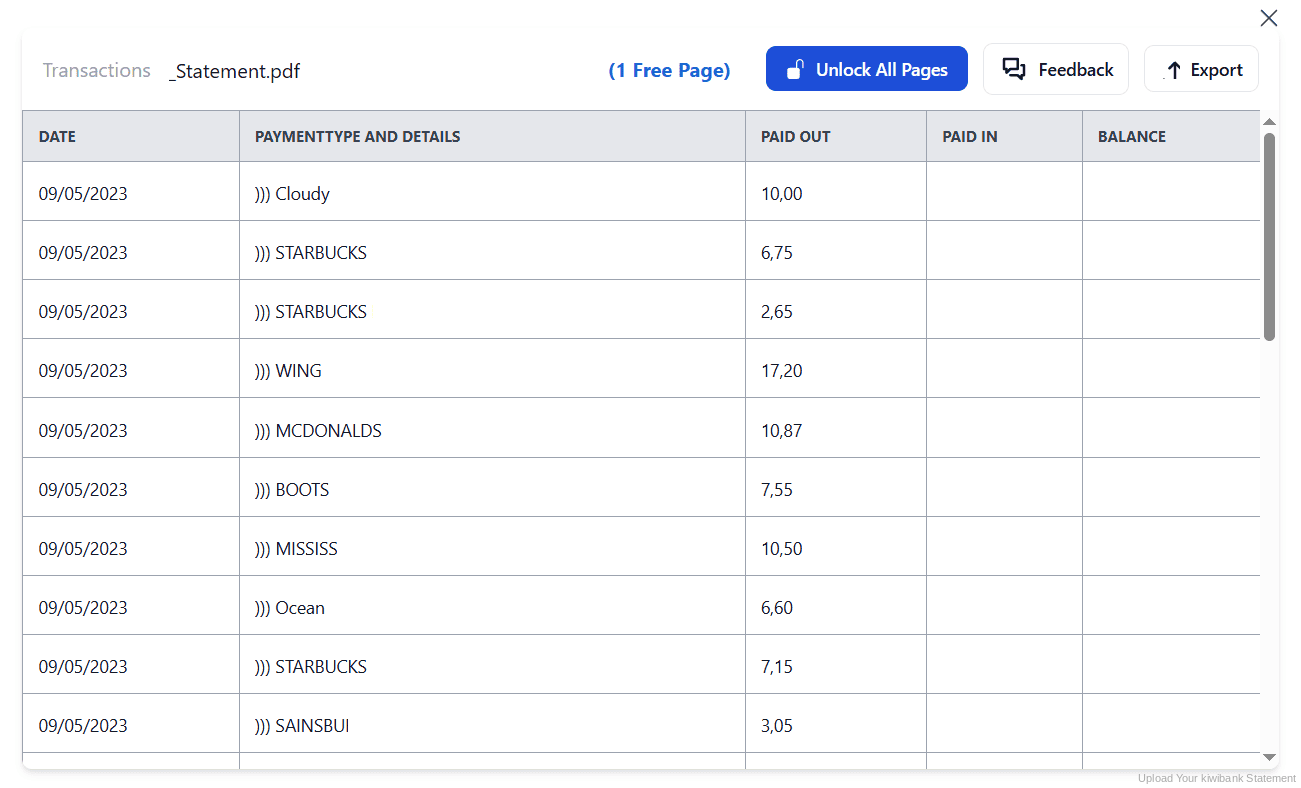
Step 3: Our engine converts it into a structured Excel or CSV file

Step 4: Check the result and download your converted file instantly
Can You Convert Kiwibank Statements Manually?
The Statement Vault hands you one PDF per month, so a full tax year means twelve separate downloads and twelve rounds of copying and pasting. Each one brings the usual damage: columns drifting at page breaks, descriptions wrapping onto a second line, amounts arriving as text.
The export is not a shortcut either. JSON needs a script to be useful, QIF and OFX target accounting software, and the whole feature is desktop only. Add a date range that often defaults to the last ninety days and it is easy to walk away with less data than you thought.
An automatic converter reads each statement, merges wrapped descriptions and rebuilds Date, Description, Withdrawals, Deposits and Balance as real columns, across as many months as you need. Check your totals against the closing balance afterwards to confirm the result.
Related Guides
More New Zealand Bank Guides:
Frequently Asked Questions
Where is the export option in Kiwibank internet banking?
Open the account, then click Search and export options to expand the panel. Set your date range, choose a format and click Export. It is collapsed by default, which is why many customers never notice it.
What formats can Kiwibank export?
Kiwibank offers CSV, JSON, OFX, QIF and PDF. CSV suits spreadsheets, QIF and OFX suit accounting software, and JSON is aimed at scripts or custom tools rather than everyday use.
What is the Kiwibank Statement Vault?
It is where your official monthly statements are stored. Click Settings at the top, then under Transactions and Accounts click Statement Vault, select the account and download each statement as a PDF.
Can I export transactions from the Kiwibank mobile app?
No. The transaction export is only available in internet banking on a computer. From a phone you can still reach statement PDFs, which you can convert to a spreadsheet.
Why does my export only cover the last three months?
The date range often defaults to a recent window, commonly the last ninety days. Set the start and end dates deliberately before exporting, or use the Statement Vault for older periods.
Can I use converted statements for my New Zealand tax return?
Yes. The tax year runs 1 April to 31 March, and a converted spreadsheet lets you filter that exact range and import it into Xero, MYOB or Hnry.
Tips for Organizing Your Converted Kiwibank Statements
Once your statements are converted to Excel or CSV, here is how to get the most out of them:
- Convert the whole vault at onceDownloading twelve monthly PDFs is tedious but quick. Convert them together and sort by date: you get one continuous spreadsheet instead of twelve disconnected documents.
- Set the date range deliberatelyThe export range often defaults to a short recent window. Always set the start and end dates yourself, or you will export far less than you intended.
- Line your file up with the tax yearNew Zealand's tax year runs 1 April to 31 March. Once converted, filter that range in one step rather than stitching monthly statements together by hand.
- Reconcile against the closing balanceCompare your converted totals with the opening and closing balances printed on the statement. If they disagree, a row is missing or duplicated.
- Keep records for seven yearsInland Revenue requires business records to be kept for seven years. Keep the original PDF: in a review it is the source document that counts, not your spreadsheet.
Troubleshooting Common Kiwibank Conversion Issues
- You cannot find the export buttonIt is hidden behind Search and export options on the account screen, which is collapsed by default. Click it to expand the panel, then set your date range and format.
- Your export covers a shorter period than expectedThe date range often defaults to a recent window. Set your start and end dates before exporting, or download the older months from the Statement Vault instead.
- Your JSON file is unreadable in ExcelJSON is built for scripts and custom tools, not spreadsheets. Choose CSV for a spreadsheet, or convert the statement PDF for a formatted workbook.
- Amounts are not adding upPasting from a PDF usually turns amounts into text. A clean conversion returns them as numbers you can calculate with straight away.
Final Thoughts: Take Control of Your Financial Data
Kiwibank splits things in two: a transaction export hidden behind a collapsed link and locked to desktop, and a Statement Vault holding one PDF per month. Five formats sound generous, but none of them is a ready workbook.
With StatementSheet, your Kiwibank PDF statements become clean Excel or CSV files: separate columns, merged descriptions, NZD amounts that calculate properly, ready for the tax year and your accountant.
Ready to convert your Kiwibank bank statement to Excel or CSV?
➡️ Ready to turn a bank statement PDF into Excel? and merge your whole Statement Vault at once.