
How to Convert BNZ Bank Statements to Excel and CSV
A step-by-step guide to turning your BNZ statements into usable spreadsheet formats, built for New Zealand.
BNZ makes exporting look easy: open an account, click Export, pick CSV, and you have a file. Then you try to pull the year before last for an IRD query, and the history simply is not there. BNZ keeps around three years of transaction history online, and the export cannot reach past what the bank still holds.
This guide explains what BNZ actually lets you export, where the three year wall sits, and how StatementSheet turns your BNZ PDF statements into clean Excel or CSV files.
Can You Download BNZ Bank Statements Directly in Excel or CSV?
Short answer: yes for transactions, in CSV, QIF or OFX. But it is desktop only, and the history behind it stops at about three years.
BNZ, one of New Zealand's four largest banks and a subsidiary of NAB since 1992, does give you a real export. From internet banking on a computer, open the account you need, click Export at the top right, choose CSV, QIF or OFX from the dropdown, set your date range and download. Most accounting packages accept those formats.
Two things narrow it. The export is desktop only, so the mobile app will not produce a CSV. And more importantly, BNZ keeps roughly three years of transaction history online. You cannot export what the bank no longer displays, so anything older is simply out of reach through that route.
Statements are a separate path: Menu, then Documents, then Statements, pick the account and download the PDF. Those PDFs are the record that survives past the transaction history window. Converting them is how you rebuild a period the export can no longer give you.
Why Convert BNZ PDF Bank Statements to Excel or CSV?
The export is good but short-lived, and the mobile app gives you nothing. Converting fills both gaps:
- Reach past the three year history windowBNZ keeps about three years of transaction history online, so the export cannot go further back. Your downloaded PDF statements can, and converting them rebuilds the older periods.
- Work without a desktop computerThe CSV, QIF and OFX export is desktop only. If you are working from a phone or tablet, the statement PDF is what you can reach, and converting it gives you the same spreadsheet result.
- Get a real formatted workbookCSV, QIF and OFX are plain interchange formats aimed at accounting software. Converting the PDF produces a proper .xlsx workbook with typed columns, ready for pivot tables and analysis.
- Prepare the New Zealand tax yearThe New Zealand tax year runs 1 April to 31 March, which rarely lines up with a single statement. A converted spreadsheet lets you slice the exact period your accountant or the IRD needs.
- Import into Xero, MYOB or HnryA clean CSV imports straight into Xero, MYOB or Hnry for reconciliation, without hand-fixing columns or date formats first.
Transaction Export vs. PDF Statement: Which Should You Use?
BNZ separates the transaction export from the statement document. They do not cover the same ground.
| Critère | Export (CSV / QIF / OFX) | PDF statement (converted) |
|---|---|---|
| History depth | Limited to what is online, about three years | As far back as your saved PDFs |
| Available on mobile | No, desktop internet banking only | Yes, statements download on any device |
| Formatted .xlsx workbook | No, plain interchange formats | Yes, after conversion |
| Official document | No, a transaction extract | Yes, the statement stands as the record |
| Best for | Feeding accounting software | Tax year, audits, older periods |
Simple rule: If the period is recent and you are on a computer, the native export does the job. For anything older than the online history, or for a formatted workbook, convert the PDF statement.
Why Use StatementSheet?
StatementSheet reads your BNZ PDF statement and turns every transaction line into a structured spreadsheet row, with no copying, pasting or manual cleanup.
- ✔️ Recovers periods beyond BNZ's roughly three year online history
- ✔️ Works from statements downloaded on any device, not just desktop
- ✔️ Produces a properly formatted .xlsx workbook, not a plain interchange file
- ✔️ Columns for Date, Description, Withdrawals, Deposits and Balance, with wrapped descriptions merged
- ✔️ Handles New Zealand date formats and NZD amounts correctly
- ✔️ Ready for Xero, MYOB, Hnry and Excel
- ✔️ Scanned statements handled by OCR, with files processed securely
Which BNZ Documents Can You Convert?
BNZ serves personal, business and institutional customers across New Zealand. StatementSheet handles:
- BNZ everyday and savings account statements in PDF
- BNZ credit card statements
- BNZ business account statements
- Statements downloaded from the Documents section of internet banking
- Scanned or archived paper BNZ statements
How to Convert BNZ PDF Bank Statements in Four Easy Steps
Here is how to turn your BNZ PDF statements into Excel or CSV:
Step 1: Download Your BNZ PDF Statement
- Log in to BNZ Internet Banking
- From the main page, open Menu, then Documents
- Click Statements and select the account you need
- Click the statement you want, then Download to save the PDF
If you prefer the raw transaction export, that lives elsewhere: open the account, click Export at the top right, choose CSV, QIF or OFX and set a date range. It is desktop only, and it cannot reach past the roughly three years BNZ keeps online. If a statement opens as a blank screen, update your browser and try again.
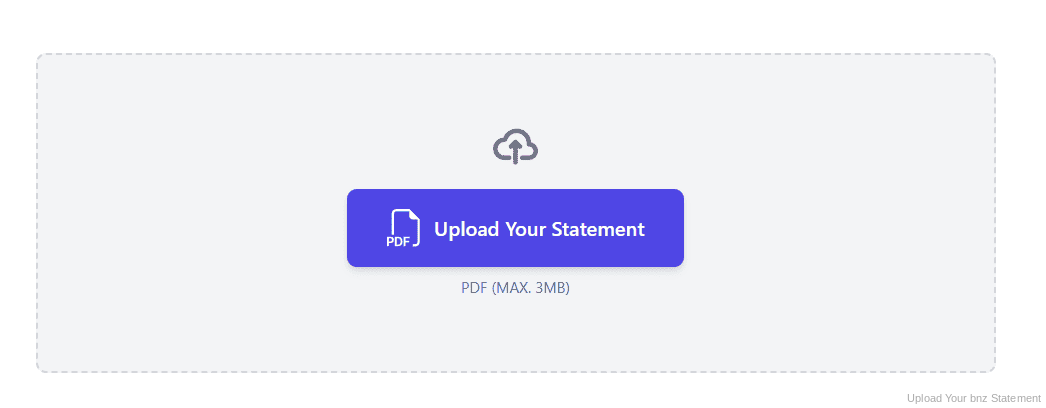
Step 2: Upload Your PDF Bank Statement
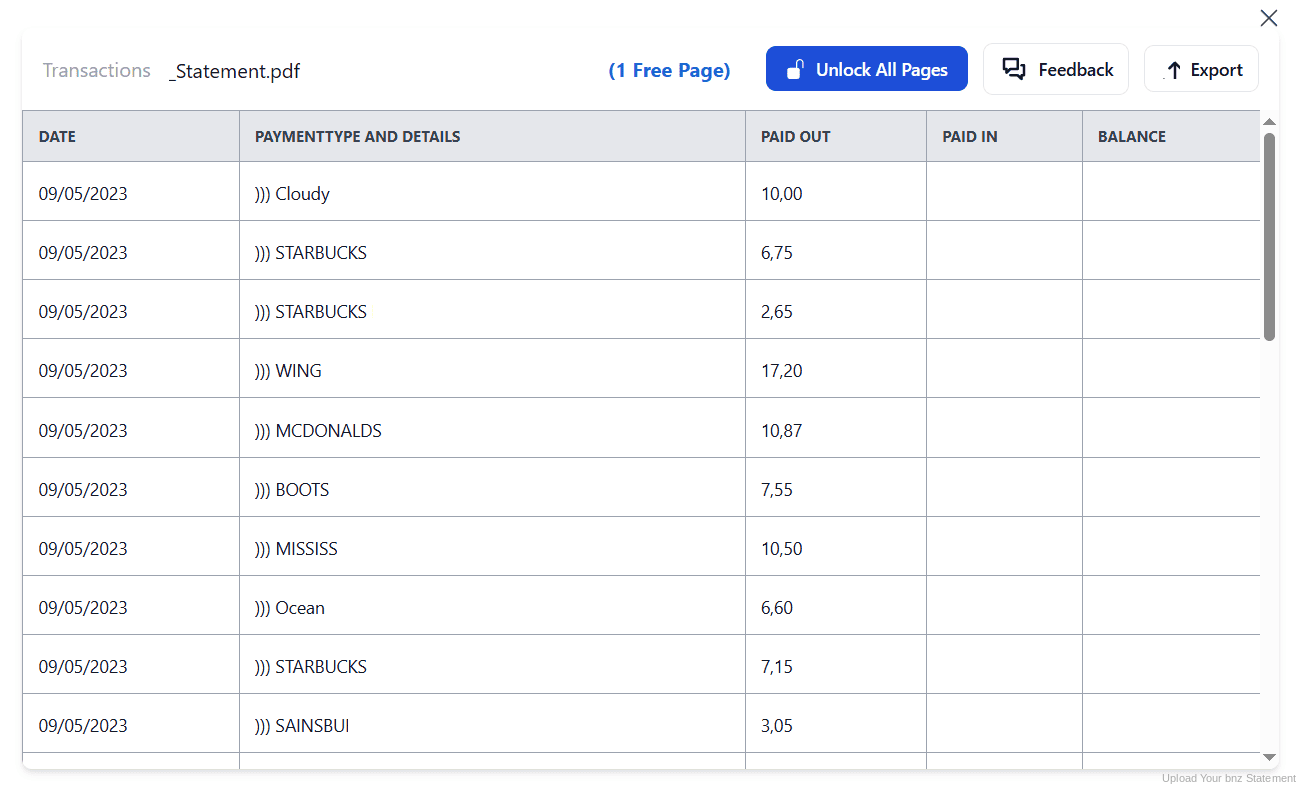
Step 3: Our engine converts it into a structured Excel or CSV file

Step 4: Check the result and download your converted file instantly
Can You Convert BNZ Statements Manually?
You can copy and paste, but the timing works against you. Once a period falls outside the roughly three years BNZ keeps online, there is no transaction list left to copy from, only the PDF statement you saved earlier. And on a phone or tablet there is no export at all.
The formats do not help either. QIF and OFX are built for accounting software, not for reading in a spreadsheet, and pasting from the PDF brings the usual damage: columns shifting at page breaks, descriptions wrapping onto a second line, amounts landing as text instead of numbers.
An automatic converter reads the statement, merges wrapped descriptions and rebuilds Date, Description, Withdrawals, Deposits and Balance as real columns. Check your totals against the closing balance afterwards to confirm the result.
Related Guides
More New Zealand Bank Guides:
Frequently Asked Questions
Can I export BNZ transactions to CSV?
Yes. In BNZ internet banking on a computer, open the account, click Export at the top right, choose CSV, QIF or OFX from the dropdown, set your date range and click Export. The export is not available in the mobile app.
How far back does BNZ transaction history go?
BNZ keeps around three years of transaction history online. You cannot export beyond what the bank still displays, so for older periods you need the PDF statement, which you can convert.
Where do I find my BNZ statements?
Log in to internet banking, open Menu, then Documents, then Statements. Select the account, click the statement you want and choose Download. It saves to your downloads folder as a PDF.
Why does my BNZ statement open as a blank screen?
This usually means your browser is out of date. Update to the latest version, then open the statement again from your downloads folder.
Does BNZ give me a real Excel file?
No. The export offers CSV, QIF and OFX, which are interchange formats rather than a formatted .xlsx workbook. Converting the PDF statement produces a proper workbook with typed columns.
Can I use converted statements for my New Zealand tax return?
Yes. The New Zealand tax year runs 1 April to 31 March, and a converted spreadsheet lets you filter that exact range and import it into Xero, MYOB or Hnry for your accountant.
Tips for Organizing Your Converted BNZ Statements
Once your statements are converted to Excel or CSV, here is how to get the most out of them:
- Save statements before they age outBecause online history runs to about three years, download and convert your statements each year. Once a period drops off, only your own saved PDF can bring it back.
- Export on desktop, convert anywhereThe native export needs a computer. If you bank mostly on your phone, download the statement PDF instead and convert that, which gives the same spreadsheet result.
- Line your file up with the tax yearNew Zealand's tax year runs 1 April to 31 March. Once converted, filter that range in one step rather than stitching monthly statements together by hand.
- Reconcile against the closing balanceCompare your converted totals with the opening and closing balances printed on the statement. If they disagree, a row is missing or duplicated.
- Keep records for seven yearsInland Revenue requires business records to be kept for seven years. Keep the original PDF: in a review it is the source document that counts, not your spreadsheet.
Troubleshooting Common BNZ Conversion Issues
- Your export will not go back far enoughBNZ keeps about three years of transaction history online, and the export cannot exceed it. Use the PDF statement for older periods and convert that instead.
- You cannot find the export option on mobileThe CSV, QIF and OFX export is only available in internet banking on a computer. From a phone, download the statement PDF and convert it.
- Your QIF or OFX file will not open in ExcelThose formats target accounting software rather than spreadsheets. Choose CSV for a spreadsheet, or convert the PDF statement for a formatted workbook.
- Amounts are not adding upPasting from a PDF usually turns amounts into text. A clean conversion returns them as numbers you can calculate with straight away.
Final Thoughts: Take Control of Your Financial Data
BNZ exports to CSV, QIF and OFX, which is more than many banks offer, but it is desktop only and it cannot reach past the roughly three years of transaction history the bank keeps online.
With StatementSheet, your BNZ PDF statements become clean Excel or CSV files: separate columns, merged descriptions, NZD amounts that calculate properly, ready for the tax year and your accountant.
Ready to convert your BNZ bank statement to Excel or CSV?
➡️ Ready to convert bank statement PDF to Excel? and reach past the three year history window.