
How to Convert Bendigo Bank Statements to Excel and CSV
A step-by-step guide to export your Bendigo Bank statements into usable spreadsheet formats.
Managing your banking account data becomes a time-consuming task when the CSV you download breaks your spreadsheet the moment a transaction description wraps onto a second line. If you're a Bendigo Bank customer, you might have searched for how to download a bank statement in Excel, or Bendigo Bank CSV statements, hoping for an easy export.
Whether you're handling business banking, managing personal banking needs, or preparing data for your tax return, working with your Bendigo Bank statements in CSV or Excel gives you real financial control.
In this guide we explain exactly what Bendigo's e-banking gives you, why multi-line descriptions cause so much trouble, and how to use StatementSheet, the easiest way to convert bank statements from PDF to spreadsheet format.
Can You Download Bendigo Bank Statements Directly in Excel or CSV?
Short answer: yes for transactions, no for the issued statement.
Bendigo Bank publishes a help page titled "Which formats are available for me to download my transactions from the new e-banking website?", so the feature exists. In practice: click the account you want, then the Download button located just above your account activity feed (it's also in the Account Settings menu). Set a custom date range, and export as CSV. For a financial year, that means 01/07 to 30/06.
Bendigo also supports daily automated bank feeds straight into MYOB BankLink, Xero and QuickBooks, which the bank describes as the secure way to access your banking information without sharing your e-banking credentials with a third party. If you're a business already using one of those, that's worth setting up.
Your e-statements are separate, and they're PDFs. Statements for open accounts are available in e-banking for up to seven years. So when you need the issued statement, an archived year, or a file whose multi-line descriptions haven't shattered into separate rows, download the PDF and convert it with StatementSheet.
Why Convert Bendigo PDF Bank Statements to Excel or CSV?
Bendigo's CSV export works, right up until a description wraps. Converting the PDF statement handles the cases it can't:
- Survive Bendigo's multi-line descriptionsBendigo transaction descriptions frequently run onto a second line, and those messy multi-line entries break traditional CSV parsers. A single transaction ends up split across two rows, with the amount stranded on one of them.
- Get the issued statement for lenders and the ATOA transaction export isn't the statement. For a mortgage application, a visa file, or an ATO audit, the e-statement PDF is the document that counts, and Bendigo keeps seven years of them for open accounts.
- ATO record-keeping complianceFor individuals and businesses lodging Australian tax returns, structured CSV makes it far easier to categorise expenses and income in line with ATO standards, and to prepare quarterly BAS submissions.
- Re-sort into chronological orderBendigo lists transactions newest to oldest, the opposite of what most accounting imports expect. Converting lets you flip the order and keep the running balance readable.
- Integration with accounting toolsClean CSV imports directly into MYOB, Xero AU and QuickBooks AU, with EFTPOS, PayID, BPAY and direct debit entries parsed into their own columns rather than one text blob.
Bendigo CSV Export vs. Bank Feed vs. e-Statement
Bendigo offers three routes to your data. Which one you need depends on whether you're feeding software, checking figures, or proving something to someone.
| Feature | CSV export | Daily bank feed | e-Statement (converted) |
|---|---|---|---|
| Where | Download button above activity feed | MYOB, Xero, QuickBooks | e-banking or the app |
| Multi-line descriptions | Can break the file | Handled by the feed | Merged into one row |
| Official record | No | No | Yes |
| History available | Your chosen date range | Ongoing, daily | Up to 7 years (open accounts) |
| Best for | One-off analysis | Ongoing bookkeeping | BAS, audits, mortgages, visas |
Rule of thumb: set up a bank feed if you reconcile monthly. Use the CSV export for a quick look. Convert the e-statement PDF whenever the document itself matters, or when the export won't parse cleanly.
Why Use StatementSheet?
If you want an accurate, secure, and quick way to convert Bendigo Bank statements to Excel or CSV, StatementSheet is your go-to solution.
- ✔️ Merges Bendigo's multi-line descriptions into a single clean row
- ✔️ Parses EFTPOS, PayID, BPAY and direct debit entries into their own columns
- ✔️ Extracts date, description, debit, credit and running balance in full
- ✔️ Handles Everyday, eSaver, Reward and all transaction and savings accounts
- ✔️ Supports AUD and DD/MM/YYYY dates, matching MYOB and Xero AU's locale
- ✔️ Converts archived e-statements across the full seven-year window
- ✔️ Fast, accurate extraction from both digital and scanned PDFs
- ✔️ Fully secure, encrypted uploads deleted after conversion
Which Bendigo Bank Documents Can You Convert?
StatementSheet works across the Bendigo and Adelaide Bank range, including:
- Bendigo Everyday transaction account statements
- eSaver and Reward savings account statements
- Bendigo Bank credit card statements
- Business banking and home loan statements
- Archived e-statements from the seven-year window, plus scanned paper statements
How to Convert Bendigo PDF Bank Statements in Four Easy Steps
Here’s how you can convert your Bendigo Bank PDF bank statements
Step 1: Download Your Bendigo Bank PDF Statement
- Log in to Bendigo Bank e-banking or the Bendigo Bank app
- Open the account you need (Everyday, eSaver, Reward, or credit card)
- Navigate to your statements to access the PDF copies (open accounts hold up to seven years)
- Download the PDF and save it to your device
Not yet on e-statements? Go to settings, then statement preferences, and switch off the paper statements toggle (you can add up to three email addresses for notifications). If you only need recent rows, click the Download button just above your account activity feed, set a custom date range covering your financial year (01/07 to 30/06), and export as CSV. Watch for descriptions that wrap, they're the usual cause of a broken import.
Step 2: Upload your PDF Bank Statement
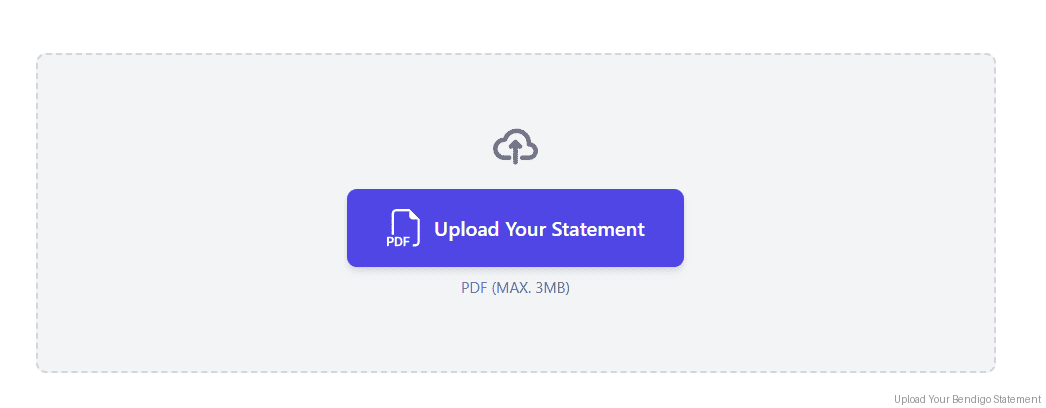
Step 3: Our smart engine converts it to a structured Excel or CSV file.

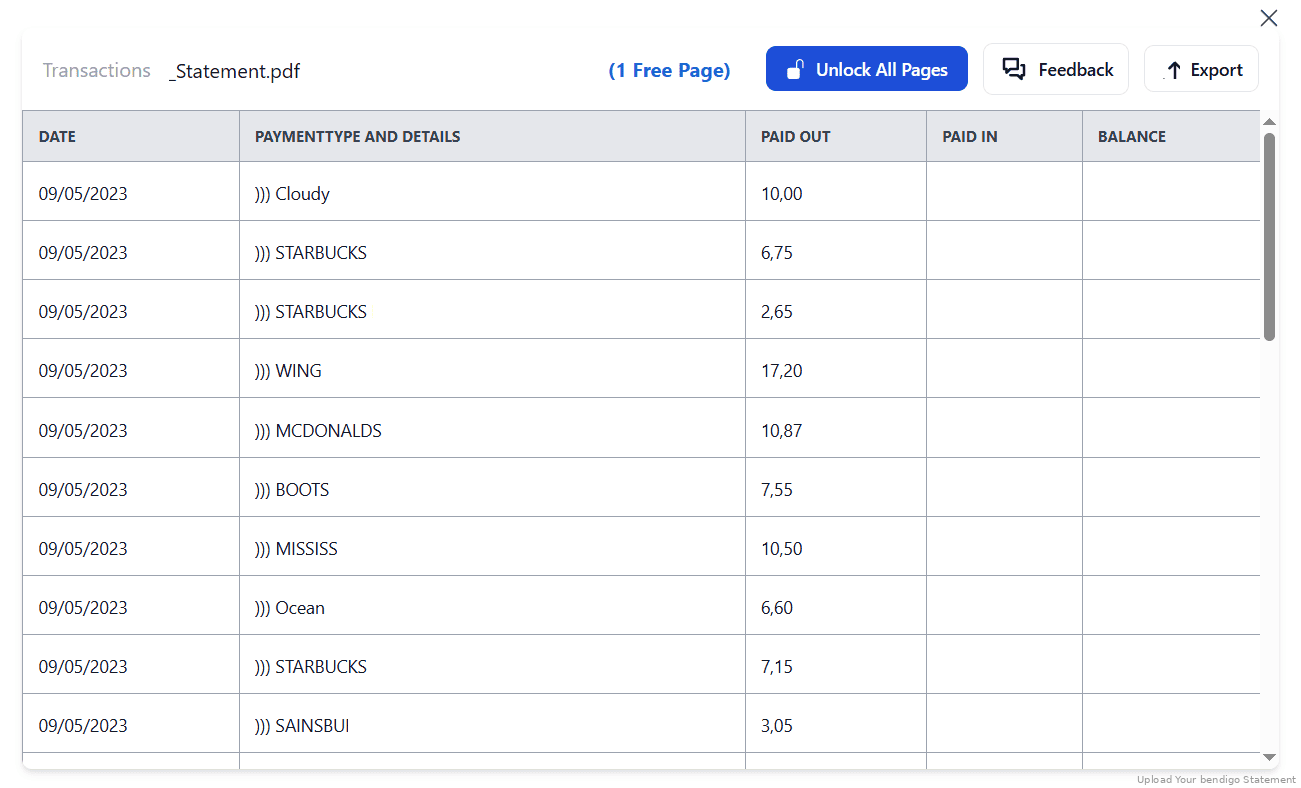
Step 4: Check result & Download your converted document instantly
Can You Convert Bendigo Bank Statements Manually?
The multi-line description is what defeats manual work with Bendigo statements. Long merchant names, BPAY biller references and PayID details routinely spill onto a second line, so a single transaction breaks across two rows and the amount ends up detached from its description. It's the same reason Bendigo's own CSV export trips up traditional parsers.
Ordering compounds it. Bendigo lists transactions newest to oldest, so any running balance you derive by working downwards runs backwards. And dates are DD/MM/YYYY, which a spreadsheet will happily read month-first, quietly relocating transactions into the wrong month before BAS time.
An automated converter merges the wrapped descriptions back into one row, keeps EFTPOS, PayID and BPAY references intact, handles DD/MM/YYYY correctly, and lets you re-sort chronologically, which is why the four-step method above is the reliable route for EOFY and lender packages.
Related Guides
More Australian Bank Guides:
Frequently Asked Questions
How do I download my Bendigo Bank transactions in CSV?
Click the account you want, then the Download button located just above your account activity feed (it's also in the Account Settings menu). Set a custom date range and export as CSV. For the issued statement, download the e-statement PDF and convert it with StatementSheet.
Why does my Bendigo CSV break when I open it?
Bendigo transaction descriptions often wrap onto a second line, and those multi-line entries break traditional CSV parsers, splitting one transaction across two rows. Converting the PDF statement merges them back into a single clean row.
Can I set up an automatic feed instead?
Yes. Bendigo supports daily automated data feeds into MYOB BankLink, Xero and QuickBooks, which the bank describes as a secure way to share transactions without handing over your e-banking credentials to a third party.
Can I access past statements from Bendigo Bank for conversion?
Yes. Statements for open accounts are available in e-banking for up to seven years, as PDF copies you can download from e-banking or the Bendigo Bank app.
Will StatementSheet work for Bendigo business banking accounts?
Yes. It works for personal and business banking customers alike, including Everyday, eSaver, Reward accounts, credit cards and savings accounts.
Does it work with scanned PDFs or photographed statements?
Yes. StatementSheet supports scanned PDFs. Make sure the scan is clear for the best extraction accuracy.
Is there a fee from Bendigo Bank to download statements?
No, Bendigo Bank provides PDF e-statements free of charge via e-banking and the app once you've switched your statement preferences.
Tips for Organising Your Bendigo Bank Statements
Once you’ve converted your Bendigo Bank PDF statements into Excel or CSV, here’s how to make the most of your data:
- Check the row count against the statementBecause Bendigo descriptions wrap, a broken conversion inflates your row count. Compare the number of rows against the statement, and look for rows with a description but no amount.
- Re-sort into chronological orderBendigo lists newest first. Most accounting imports expect oldest first, so flip the sort before checking any running balance.
- Set the date range to the financial yearFor an Australian financial year, pull 01/07 to 30/06 directly rather than downloading calendar months and trimming afterwards.
- Use Excel pivot tablesBuild dynamic financial summaries from your personal or business banking data, ready for quarterly BAS or tax lodgement.
- Securely store your converted filesUse cloud platforms like Dropbox or Google Drive with encryption, and keep copies beyond Bendigo's seven-year window for audit, mortgage, or visa purposes.
Troubleshooting Common Bendigo Bank Conversion Issues
- One transaction split across two rowsBendigo's multi-line descriptions break traditional CSV parsers. A good converter merges them, so check for rows carrying a description but no amount.
- You can't find the Download buttonIt sits just above your account activity feed, once you've opened a specific account. It can also be reached from the Account Settings menu.
- Your balance runs backwardsTransactions are listed newest to oldest. Derive the balance from the closing figure working upwards, or simply re-sort chronologically after converting.
- No statements for a closed accountThe seven-year window applies to open accounts. If you closed an account, download and convert its statements before you lose access, or contact Bendigo for copies.
Final Thoughts: Take Control of Your Finances
Bendigo Bank does export CSV, and its daily bank feeds into MYOB, Xero and QuickBooks are genuinely useful. But the export isn't the issued statement, and Bendigo's multi-line descriptions routinely break the file before it reaches your spreadsheet.
With StatementSheet, you can convert Bendigo e-statement PDFs into clean Excel or CSV, with wrapped descriptions merged, references preserved, and seven years of archives batch-converted in one go.
Stop wasting time with manual data entry. Get started now.
➡️ Convert Bank Statements with StatementSheet in minutes.