
How to Convert Suncorp Bank Statements to Excel and CSV
A step-by-step guide to export your Suncorp bank statements into editable spreadsheet formats.
Managing your banking account data is critical, especially for those juggling personal banking, credit cards, or business banking needs. If you're a Suncorp Bank customer, you may have wondered how to obtain a Suncorp bank CSV, and the answer depends on whether you need recent transactions or the issued statement.
This guide explains exactly what Suncorp's Download Transactions feature gives you, where the 364-day limit bites, and introduces StatementSheet, the trusted tool to convert Bank Statements from static PDF files into structured spreadsheets ready for analysis, taxes, or business reporting.
Can You Download Suncorp Bank Statements Directly in Excel or CSV?
Short Answer: yes for transactions, no for the issued statement, and there's a catch worth knowing.
Suncorp Bank has a page titled "Can I download statements into a file type other than PDF?", and the answer is four formats: CSV (Microsoft Excel format), OFX (used by Xero), QIF (used by MYOB and Quicken), and ASCII (for customised accounting software). In Internet Banking, select the account, click the Download Transactions icon above your transaction list, choose your file format and date format, then Download. Suncorp itself recommends CSV for spreadsheet use and QIF for accounting packages.
Two limits matter. Through Transactional History you nominate a period no greater than 364 days, so a period spanning more than a year needs multiple pulls. More subtly, this export covers transactional data which has not yet printed to statements: it's a feed of activity, not a reproduction of the issued statement.
Your eStatements remain PDFs. Active accounts can access eStatements issued since 1 July 2013 in the Suncorp Bank App and Internet Banking, and for anything older Suncorp will send copies free of charge if you request them. So when you need the official statement, a period beyond 364 days, or years of archived records in one workbook, download the PDF and convert it with StatementSheet.
Why Convert Suncorp PDF Bank Statements to Excel or CSV?
Suncorp's native export is genuinely capable, but it doesn't cover every case. Converting the eStatement PDF fills the gaps:
- Reach past the 364-day export limitSuncorp caps each download at a period no greater than 364 days. A multi-year reconciliation or a long ATO audit trail means repeated pulls, while eStatements go back to 1 July 2013.
- Get the issued statement, not just activityThe export covers transactional data which has not yet printed to statements. For a lender, an auditor, or an accountant handover, the eStatement is the document that counts.
- ATO Compliance and Tax Return PreparationIf you're a freelancer or managing a small business, clean CSV simplifies reporting income and expenses to the Australian Taxation Office, especially for BAS or EOFY.
- Recover statements from closed accountseStatements from closed accounts remain viewable if they were enabled at closure, though you may need to re-add the account to Internet Banking first. Converting them preserves the record permanently, on your own drive.
- Business Accounting and IntegrationWhether using MYOB, Xero, or QuickBooks Australia, a converted statement imports cleanly for reconciliation and audit preparation, with EFTPOS, PayID, BPAY and direct debits parsed into their own columns.
Suncorp Download Transactions vs. eStatement: Which Should You Use?
Suncorp separates the live transaction feed from the issued statement. They cover different periods and serve different purposes.
| Feature | Download Transactions | eStatement PDF (converted) |
|---|---|---|
| Period covered | No greater than 364 days per download | Every statement since 1 July 2013 |
| Formats | CSV, OFX, QIF, ASCII | Excel (.xlsx) or CSV after conversion |
| Official record | No (unprinted activity) | Yes |
| Closed accounts | Not available | Yes, if eStatements were enabled |
| Best for | Feeding Xero or MYOB regularly | EOFY, audits, lender files, archives |
Rule of thumb: within 364 days, use Download Transactions (CSV for spreadsheets, QIF or OFX for accounting software). For the issued statement, older periods, or closed accounts, convert the eStatement PDF.
Why Use StatementSheet?
StatementSheet is a secure, online tool that accurately converts your Suncorp eStatement PDFs into Excel or CSV, no manual entry, no errors, no fuss.
- ✔️ Converts statements beyond Suncorp's 364-day export limit, back to 1 July 2013
- ✔️ Merges several statements into one workbook, which no single native download can do
- ✔️ Handles Everyday Options, Goal Saver, Choice and all transaction and savings accounts
- ✔️ Parses EFTPOS, PayID, BPAY and direct debit entries into clean columns
- ✔️ Extracts date, description, debit, credit and running balance in full
- ✔️ Supports AUD and DD/MM/YYYY dates, so nothing flips to US month-first on import
- ✔️ Compatible with ATO reporting, MYOB, Xero and QuickBooks AU
- ✔️ Secure, Australian privacy-compliant, accurate on scanned or digital PDFs
Which Suncorp Documents Can You Convert?
StatementSheet works across the Suncorp Bank range, including:
- Everyday Options transaction account statements
- Goal Saver and other savings account statements
- Choice account and credit card statements
- Business banking statements
- Archived eStatements back to 1 July 2013, from active or closed accounts
How to Convert Suncorp PDF Bank Statements in Four Easy Steps
Here’s how to convert your Suncorp PDF bank statements in minutes:
Step 1: Download Your Suncorp PDF Bank Statement
- Log into Suncorp Bank Internet Banking
- Click "eStatements" in the left-hand menu to see the list of available statements
- Select the statement you need (you'll only see accounts you have permission to access)
- Download the PDF and save it securely (in the app: choose the account, then tap eStatements)
You may need to update your eStatements preferences first. If you only want recent transaction rows, select the account, click the Download Transactions icon above your transaction list, choose CSV, OFX, QIF or ASCII, pick a date format and download. Remember the period cannot exceed 364 days, and this feed only covers transactions not yet printed to statements.
Step 2: Upload your PDF Bank Statement
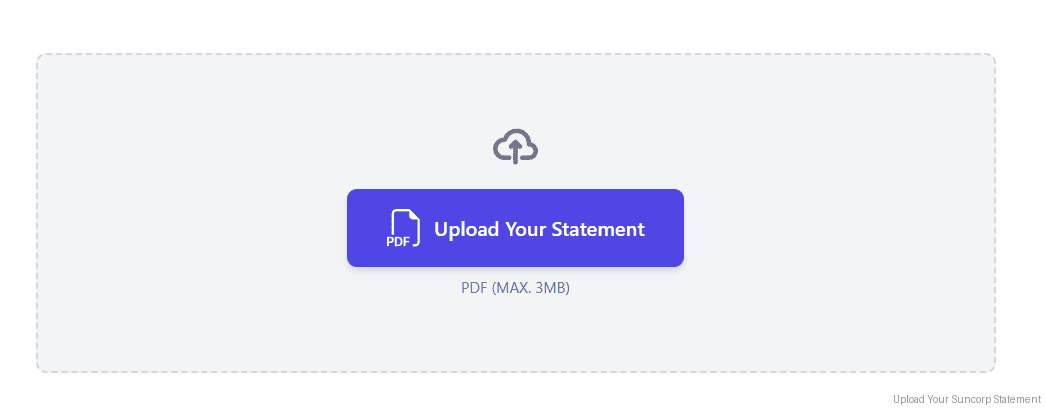
Step 3: Our smart engine converts it to a structured Excel or CSV file.

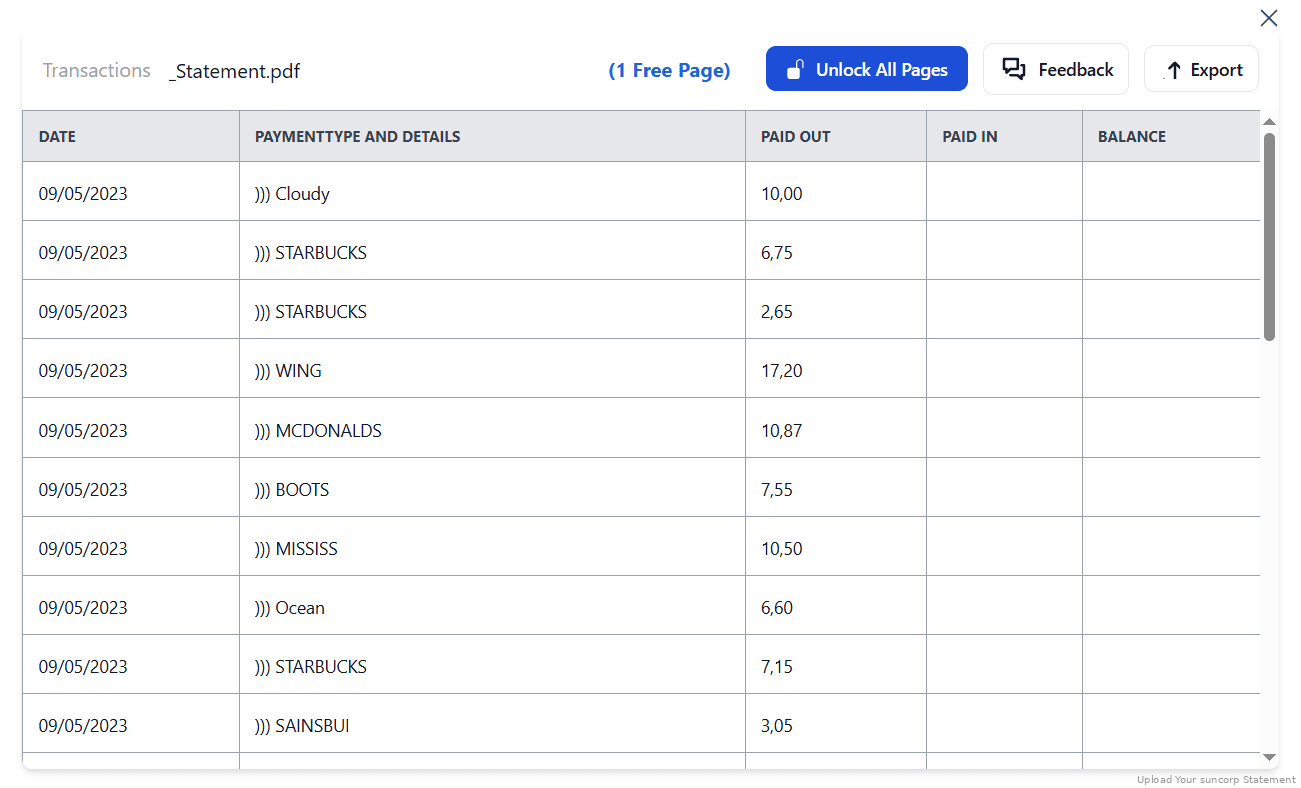
Step 4: Check result & Download your converted document instantly
Can You Convert Suncorp Statements Manually?
Suncorp uses a detailed transaction categorisation that reads well on paper and copies badly. EFTPOS entries, PayID transfers, BPAY biller references and direct debit descriptions all carry structure that collapses into a single text blob the moment you paste them into Excel.
The 364-day export limit makes it worse. Rebuilding several financial years means stitching together multiple downloads or a stack of eStatements, checking that no row was lost at a boundary and that the running balance still ties out. Dates are DD/MM/YYYY, so a spreadsheet reading them month-first will silently shuffle transactions into the wrong month.
An automated converter keeps the payment references intact, preserves date, description, debit, credit and balance columns, handles DD/MM/YYYY correctly, and merges statements into one file, which is why the four-step method above is the reliable route for EOFY and BAS work.
Related Guides
More Australian Bank Guides:
Frequently Asked Questions
How do I download my Suncorp transactions in CSV format?
Select the account, click the Download Transactions icon above your transaction list, choose CSV, pick a date format, and Download. Suncorp also offers OFX (for Xero), QIF (for MYOB and Quicken) and ASCII. For the issued statement, convert the eStatement PDF with StatementSheet.
Why can't I export more than a year at a time?
Through Transactional History, Suncorp requires a period no greater than 364 days. For multi-year records, download the eStatement PDFs (available since 1 July 2013) and convert them into one workbook.
Which export format should I choose?
Suncorp recommends CSV for spreadsheet use and QIF if your accounting package requires it. OFX suits Xero, and ASCII is for customised accounting software. Check your software's preferred format before downloading.
Can I still get statements from a closed Suncorp account?
Yes, if eStatements were enabled when the account closed and you haven't deactivated online banking. You may need to re-add the account to Internet Banking first. For statements issued before 1 July 2013, Suncorp will send copies free of charge on request.
Does it support business banking accounts?
Yes. It works with business banking and personal banking accounts, including Everyday Options, Goal Saver, Choice accounts and credit cards.
Can it read scanned PDF statements?
Yes, as long as the scans are clear. StatementSheet uses OCR technology to extract data from scanned documents accurately.
Is there a fee to download statements from Suncorp?
No. eStatements are free through Internet Banking and the Suncorp Bank App, and even pre-2013 copies are provided free of charge on request.
Tips for Organising Your Suncorp Bank Statements
After converting your PDFs into spreadsheets, here’s how to keep your finances in top shape:
- Confirm dates read as DD/MM/YYYYSuncorp even asks you to nominate a date format when exporting. After converting, spot-check transactions from the first twelve days of the month so nothing flipped to US month-first.
- Keep BPAY and PayID referencesBPAY biller codes, PayID names and EFTPOS details are your best match-points months later. Don't strip them when tidying descriptions for import.
- Use pivot tables in ExcelGenerate custom reports for EOFY preparation, GST tracking, or accountant handover.
- Check the running balance across boundariesWhen merging exports or statements to cover more than 364 days, verify each closing balance matches the next opening balance. That's how you catch a dropped row.
- Secure your files in encrypted cloud storageUse Dropbox, Google Drive, or OneDrive so your converted records survive any future platform change.
Troubleshooting Common Suncorp Conversion Issues
- Your export won't accept the date rangeSuncorp requires a period no greater than 364 days. Split the range, or convert the eStatement PDFs, which go back to 1 July 2013.
- Transactions are missing from your exportThe export covers transactional data not yet printed to statements. Anything already on an issued statement comes from the eStatement itself, not the feed.
- You only see seven days of transactionsIf you haven't registered for Online Statements, the default view is normally 7 days. Update your eStatements preferences to unlock the full list.
- No eStatements for a closed accountIf eStatements were enabled at closure, the copies since 1 July 2013 are still there. You may need to re-add the account to Internet Banking before they appear.
Final Thoughts: Take Control of Your Finances
Suncorp Bank does export in CSV, OFX, QIF and ASCII, which is more generous than most. But each download caps at 364 days, it only covers transactions not yet printed to statements, and it isn't the document a lender or the ATO will ask for.
With StatementSheet, you can convert Suncorp eStatement PDFs back to 1 July 2013 into clean Excel or CSV, merge multiple years into one workbook, and keep every BPAY and PayID reference intact. No more copy-pasting, no more manual data entry.
Ready to convert your Suncorp bank statement to Excel or CSV?
➡️ Convert Bank Statements with StatementSheet today.