
How to Convert NAB Bank Statements to Excel and CSV
A step-by-step guide to export your NAB bank statements into spreadsheet-ready formats.
Managing a banking account efficiently starts with accessing your financial data in a usable format. If you’re a NAB (National Australia Bank) customer, you may have searched for ways to nab download CSV, how to convert NAB statements to Excel, or even export NAB PDF to Excel, and got contradictory answers.
The truth depends on which NAB product you're on. Personal Internet Banking, Business Internet Banking and NAB Connect each export different formats, and mixing them up is the single most common point of confusion for Australian bookkeepers.
In this guide we explain exactly what each tier gives you, where the native export falls short, and how StatementSheet converts NAB PDF bank statements into spreadsheet-ready formats.
Can You Download NAB Bank Statements Directly in Excel or CSV?
Short answer: it depends entirely on your NAB tier, and the flat claim that "NAB doesn't export CSV" is only true for one of them.
On personal NAB Internet Banking, open Accounts, select Transaction history, then Export. You can export your transactions to a spreadsheet, a QIF file or a PDF. Note what's missing: there is no CSV option on the personal tier. The spreadsheet export produces an .xlsx file, which is not interchangeable with CSV for every workflow, Xero's bank-statement import wizard, for instance, expects CSV or OFX, not XLSX.
Business Internet Banking adds a CSV transaction report (look for Create CSV report), and NAB Connect exports CSV, PDF, QIF and NAI/BAI2. So most SMB clients can get CSV directly, while individuals and sole traders on a personal account cannot.
Three further limits apply across the board. Transaction history covers up to two years (731 days). The export is desktop only, the NAB app can only generate a PDF of recent transactions. And a transaction list isn't the statement: for BAS working papers, audit evidence or a lender pack you need the full statement artefact, which is a PDF. That's when you convert it with StatementSheet.
Why Convert NAB PDF Bank Statements to Excel or CSV?
Even when NAB's native export works, it doesn't cover every case. Converting the PDF statement does:
- Get CSV on a personal accountPersonal Internet Banking has no one-click CSV button. Your options are to open the .xlsx export and re-save it from Excel, or convert the PDF statement directly to a properly shaped CSV.
- Reach past the 731-day windowNAB Internet Banking shows up to two years (731 days) of transactions. For older tax years, an ATO audit or a multi-year reconciliation, the archived PDF statements are the only source.
- Keep the statement artefact, not just a transaction listA transaction export covers ongoing bookkeeping well but falls short when you need statement metadata, historical records, BAS working papers, audit evidence or a lender pack.
- Seamless Integration with Accounting SoftwareXero accepts CSV with column mapping (Date, Amount, Payee, Description, Reference) or OFX directly. MYOB takes QIF, OFX or CSV depending on tier. Getting the shape right first time saves a remap every month.
- Split the signed Amount columnUnlike ANZ and Westpac, NAB uses a single Amount column with negative values for debits. Converting lets you keep a signed column or split it into Debit and Credit, whichever your BAS workpaper expects.
Which NAB Product Are You On? Export Formats Compared
Identify the tier before anything else. It determines whether you get CSV natively or need to convert.
| Product | Who uses it | Export formats | CSV? |
|---|---|---|---|
| Internet Banking (personal) | Individuals, sole traders | Spreadsheet (.xlsx), QIF, PDF | No |
| Internet Banking (business) | SMEs, companies, trusts | CSV report, PDF | Yes |
| NAB Connect | Larger business | CSV, PDF, QIF, NAI/BAI2 | Yes |
| PDF statement (converted) | Everyone | Excel (.xlsx) or CSV | Yes |
Rule of thumb: on business tiers, try the native CSV report first for ongoing transaction work. On a personal account, or when you need the statement itself, older than two years, or BAS and audit evidence, convert the PDF.
Why Use StatementSheet?
StatementSheet converts NAB statements to Excel or CSV accurately, including the personal-account statements that have no native CSV option at all.
- ✔️ Produces true CSV from personal NAB statements, where Internet Banking only offers .xlsx and QIF
- ✔️ Reaches statements older than NAB's 731-day transaction history window
- ✔️ Keeps each field in its own column: date, payee, raw narrative, BPAY or PayID reference, amount, running balance
- ✔️ Handles NAB's single signed Amount column, or splits it into Debit and Credit for you
- ✔️ Outputs shapes that Xero, MYOB and QuickBooks Online accept without remapping
- ✔️ Converts both scanned and digital PDF statements, supports AUD and DD/MM/YYYY dates
- ✔️ Works with personal banking, credit cards, business banking and NAB Connect statements
- ✔️ Fully secure and encrypted, files deleted after conversion
Which NAB Documents Can You Convert?
StatementSheet works across the full range of NAB statement types, including:
- NAB transaction and savings account statements (personal tier, no native CSV)
- NAB credit card statements
- Business Internet Banking and NAB Connect statements
- Foreign Currency Account statements, which NAB issues by post only
- PDFs generated from the NAB app, plus scanned or photographed paper statements
How to Convert NAB PDF Bank Statements in Four Easy Steps
You can convert NAB bank statement PDFs into CSV or Excel format in just minutes with StatementSheet.
Step 1: Download Your NAB PDF Bank Statement
- Log in to NAB Internet Banking with your 8 to 10-digit NAB ID, or open the NAB app
- Select the account you need a statement for
- Choose the date range from the drop-down menu, then select Update transactions
- Select Export and choose PDF (in the app: tap Statements, Download your recent transactions, Date range, then Generate your PDF)
Prefer the native export? On personal Internet Banking, Accounts, Transaction history, Export gives you a spreadsheet (.xlsx) or QIF, but no CSV. Business Internet Banking offers Create CSV report, and NAB Connect exports CSV, PDF, QIF or NAI/BAI2 via its transaction reports. Remember the app can only produce a PDF, and history stops at 731 days.
Step 2: Upload your PDF Bank Statement

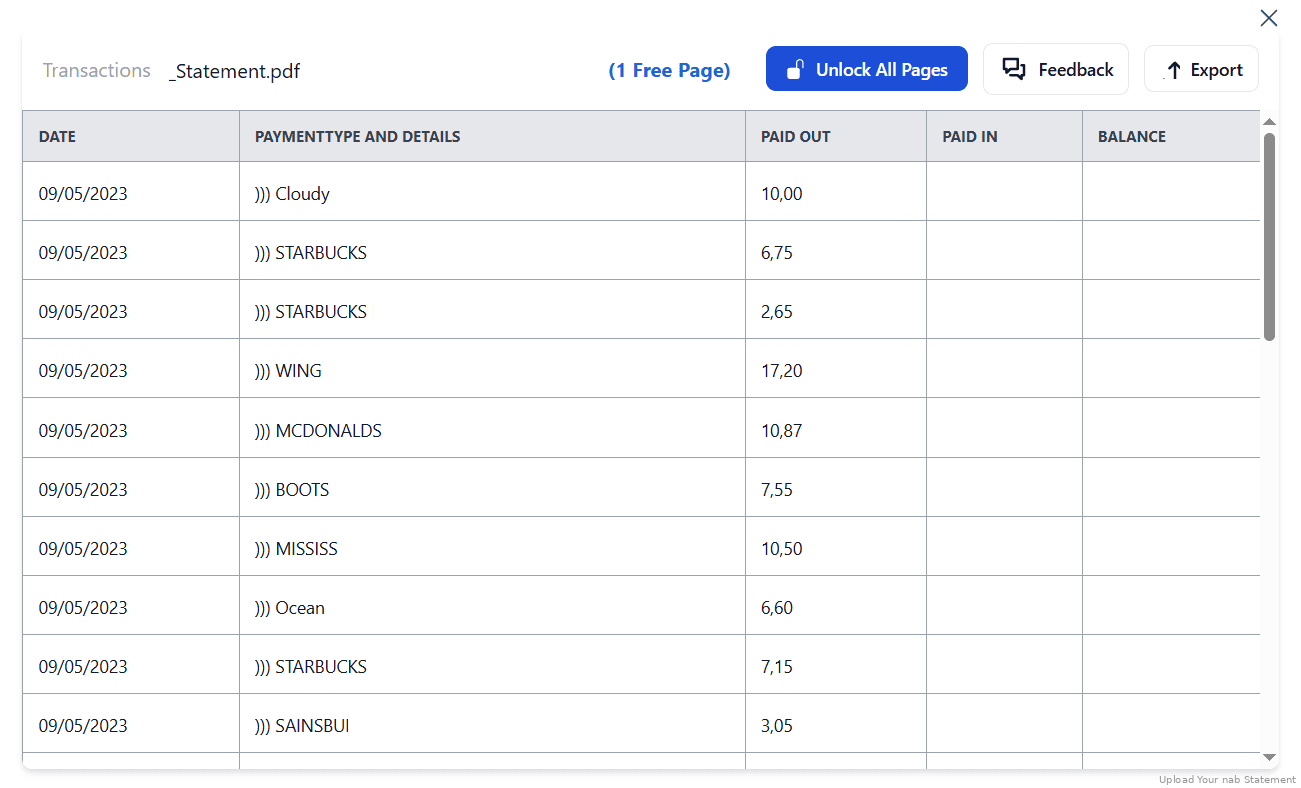
Step 3: Our smart engine converts it to a structured Excel or CSV file.

Step 4: Check result & Download your converted document instantly
Can You Convert NAB Statements Manually?
A PDF rendered as one long text blob is not what BAS reconciliation or an accounting-software import expects. Each transaction field needs its own column: date, payee, raw narrative, BPAY or PayID reference, amount, and running balance. Copy-paste collapses those distinctions, and rebuilding them by hand across a tax year is slow.
NAB-specific details matter too. Debits arrive as negative values in a single Amount column, so summing money-in versus money-out means splitting the column or using SUMIF rather than a simple total. Narratives carry BPAY CRNs, PayID names and Osko references that make useful match-points for suppliers, and losing them costs you later. Dates are DD/MM/YYYY, so guard against a spreadsheet reading them month-first.
An automated converter keeps every field in its own column, preserves the payment references, handles the signed Amount convention, and outputs a shape Xero or MYOB accepts, which is why the four-step method above is the reliable route for BAS workpapers and lender packs.
Related Guides
More Australian Bank Guides:
Frequently Asked Questions
How do I download my NAB statement in CSV format?
It depends on your tier. Business Internet Banking offers Create CSV report, and NAB Connect exports CSV. Personal Internet Banking does not: Export only gives you a spreadsheet (.xlsx), QIF or PDF. On a personal account, convert the PDF statement with StatementSheet for a proper CSV.
Why does my NAB export come out as .xlsx instead of CSV?
Personal Internet Banking's spreadsheet export produces an .xlsx file. That isn't interchangeable with CSV everywhere: Xero's bank-statement import wizard expects CSV or OFX, not XLSX. Either re-save it from Excel, or convert the PDF directly.
How far back does NAB transaction history go?
Up to two years, or 731 days, in NAB Internet Banking. For older periods, download the archived PDF statements and convert them.
Can I export transactions from the NAB app?
Not to a spreadsheet. The app can generate a PDF of recent transactions (Statements, Download your recent transactions, Generate your PDF). For CSV or spreadsheet exports, use NAB Internet Banking on a desktop browser.
Why does the NAB CSV show negative amounts for debits?
NAB uses a single Amount column with negative values for money going out, rather than separate Debit and Credit columns like ANZ and Westpac. This is normal. Use SUMIF to total positive and negative entries separately, or convert the PDF and split the column.
Does StatementSheet work for all NAB accounts?
Yes, it works with personal banking, credit card statements, business banking and NAB Connect statements, including Foreign Currency Account statements that NAB only issues by post.
Is there a fee for downloading PDF statements from NAB?
No. NAB provides PDF statement downloads free of charge through NAB Internet Banking and the NAB app.
Tips for Organising Your NAB Bank Statements
Once you’ve converted your PDFs, here are practical ways to manage your NAB bank data in Excel or CSV:
- Split or SUMIF the signed Amount columnBecause debits are negative in one column, a plain total tells you nothing. Split into Debit and Credit, or use SUMIF to sum positives and negatives separately, before reporting money in versus money out.
- Keep BPAY and PayID references in their own columnXero's import expects a Reference field. Map it from the BPAY CRN, PayID name or Osko reference, whichever gives the cleanest match-point for that supplier.
- Use Excel pivot tablesSummarise large amounts of data across accounts and generate business-friendly overviews for BAS lodgement or the ATO.
- Organise files by account and date rangeMaintain folders for each banking account (savings, transaction, credit card) with clear naming conventions.
- Backup securely using cloud storageUse Google Drive or OneDrive to store converted data beyond NAB's 731-day online window, ready for tax audits or loan applications.
Troubleshooting Common NAB Conversion Issues
- There's no CSV option on your accountYou're on personal Internet Banking, which exports spreadsheet (.xlsx), QIF and PDF only. Business Internet Banking and NAB Connect add CSV. Otherwise, convert the PDF statement.
- Xero rejects your NAB exportXero's bank-statement import wizard takes CSV or OFX, not XLSX. Re-save the spreadsheet as CSV, or convert the PDF into a CSV with Date, Amount, Payee, Description and Reference columns.
- CSV opens as one squashed columnDon't double-click it. In Excel use Data, From Text/CSV with a comma delimiter; in Google Sheets use File, Import and choose comma as the separator.
- Transactions stop after two yearsNAB Internet Banking holds 731 days of transaction history. Anything older lives only in the PDF statements, so download and convert those.
Final Thoughts: Take Control of Your NAB Financial Data
NAB's export depends on your tier: business customers get CSV, personal customers get .xlsx and QIF but no CSV at all. Neither gives you the statement artefact, and history stops at 731 days.
With StatementSheet, you can convert NAB PDF statements into a properly shaped Excel or CSV file in a few clicks, with each field in its own column and the payment references intact. It’s fast, secure, and tailored for Australian individuals and businesses.
Ready to convert your NAB bank statement to Excel or CSV?
➡️ Visit StatementSheet and transform your PDFs into actionable spreadsheets today.