
How to Convert UOB Bank Statements to Excel and CSV
A step-by-step guide to turning your UOB statements into usable spreadsheet formats, built for Singapore.
You open a UOB statement, ready to reconcile the quarter, and something is missing: the dates read 15/03 with no year attached. Scroll further and every page repeats a balance brought forward line that looks like a transaction but is not one. Neither quirk is a mistake, and both quietly break a spreadsheet.
This guide explains what UOB actually lets you download, where the twelve month wall sits, and how StatementSheet turns your UOB PDF statements into clean Excel or CSV files ready for reconciliation.
Can You Download UOB Bank Statements Directly in Excel or CSV?
Short answer: partly. UOB Personal Internet Banking on desktop can export transactions, but only for the last twelve months, and the app gives you PDF only.
UOB does offer a transaction download. On Personal Internet Banking, from a desktop browser, you open Account Details, choose Download Statement or Statement and Transaction History, set a date range, and pick your format. That is genuinely more than several Singapore banks provide.
Two limits show up quickly. First, the export window typically covers only the last twelve months. Anything older has to come from an archived PDF, or from a certified statement requested from the bank. Second, the UOB TMRW app only gives you PDF: tap your account, open Statements, and you download a document, not data. For CSV you must return to the desktop.
So for a full financial year, a GST quarter that has closed, or any older period, the PDF statement is what you actually hold. Converting it is the most direct route to a spreadsheet, and it sidesteps the twelve month wall entirely.
Why Convert UOB PDF Bank Statements to Excel or CSV?
The native export is short and the PDF is unreadable in a spreadsheet. Converting bridges the gap:
- Get past the twelve month export limitUOB's transaction download typically reaches back only twelve months. Your archived PDF statements go further, so converting them rebuilds the older history the export cannot reach.
- Restore the missing year on every dateUOB statements print dates without the year, so a line reads 15/03 rather than 15/03/2025. Sorting and reconciling become guesswork. A proper conversion infers the year from the statement period and writes complete dates.
- Strip out phantom balance rowsBalance brought forward and balance carried forward repeat on every page. Pasted into a spreadsheet they look like real transactions and inflate your count. Converting removes them automatically.
- Handle both statement layoutsSome UOB statements use separate Withdrawals and Deposits columns, others a single signed Amount column. Treating one as the other flips signs and corrupts totals. Conversion detects the layout and normalises it.
- File GST and keep your books cleanGST registered businesses reconcile output and input tax every quarter for the GST F5 return. A clean CSV imports straight into Xero, QuickBooks or MYOB, so reconciliation stops being manual.
Transaction Download vs. PDF Statement: Which Should You Use?
UOB treats the transaction download and the statement as two different things. They do not serve the same purpose.
| Critère | Transaction download (CSV) | PDF statement (converted) |
|---|---|---|
| History depth | About twelve months | As far back as your archived PDFs |
| Available on mobile | No, desktop banking only | Yes, PDF from the TMRW app |
| Dates include the year | Yes | Restored during conversion |
| Balance forward rows removed | Not applicable | Yes, filtered automatically |
| Best for | Checking the current year | Full year accounts, GST, audits |
Simple rule: For the last few months, the native download does the job. For a closed financial year, an older GST quarter or an audit, convert the PDF statement.
Why Use StatementSheet?
StatementSheet reads your UOB PDF statement and turns every transaction line into a structured spreadsheet row, with no copying, pasting or manual cleanup.
- ✔️ Reaches back beyond UOB's twelve month export window
- ✔️ Rebuilds full dates where the statement prints only day and month
- ✔️ Filters out repeated balance brought forward and carried forward rows
- ✔️ Detects whether your statement uses split Withdrawals and Deposits or a signed Amount column
- ✔️ Columns for Date, Description, Withdrawals, Deposits and Balance, with wrapped descriptions merged
- ✔️ Works with Xero, QuickBooks, MYOB and Excel for GST reconciliation
- ✔️ Scanned statements handled by OCR, with files processed securely
Which UOB Documents Can You Convert?
UOB serves personal, wealth and business customers across Singapore and the region. StatementSheet handles:
- UOB savings and current account statements in PDF
- UOB One Account and Stash Account statements
- UOB credit card statements, including co-branded cards
- UOB CashPlus and business account statements
- UOB regional statements from Malaysia, Thailand and Indonesia, plus scanned copies
How to Convert UOB PDF Bank Statements in Four Easy Steps
Here is how to turn your UOB PDF statements into Excel or CSV:
Step 1: Download Your UOB PDF Statement
- Log in to UOB Personal Internet Banking, or open the UOB TMRW app
- Go to Account Details, then Download Statement, or open Statement and Transaction History
- Select the account and set the date range you need
- Download the statement as PDF and save it to your computer
A practical note: the TMRW app only offers PDF, so use desktop banking if you want the native CSV. Either way the transaction download usually stops at twelve months, so for older periods save the archived PDF, or request a certified statement from UOB.
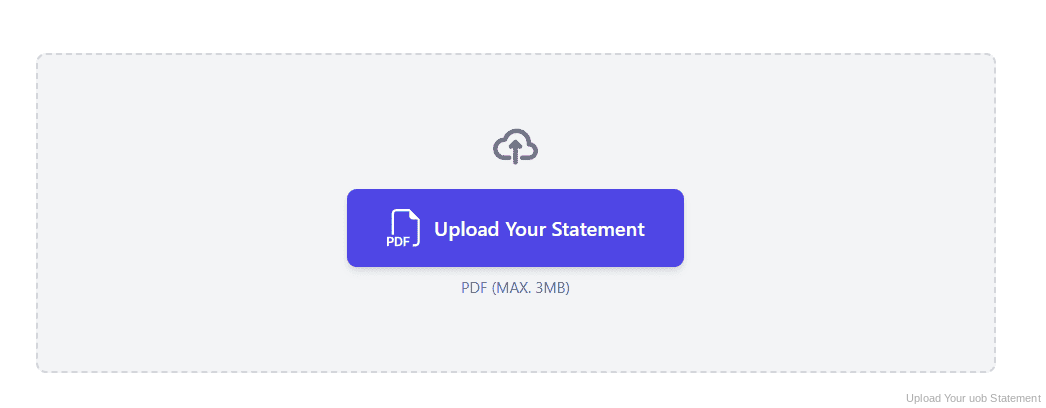
Step 2: Upload Your PDF Bank Statement
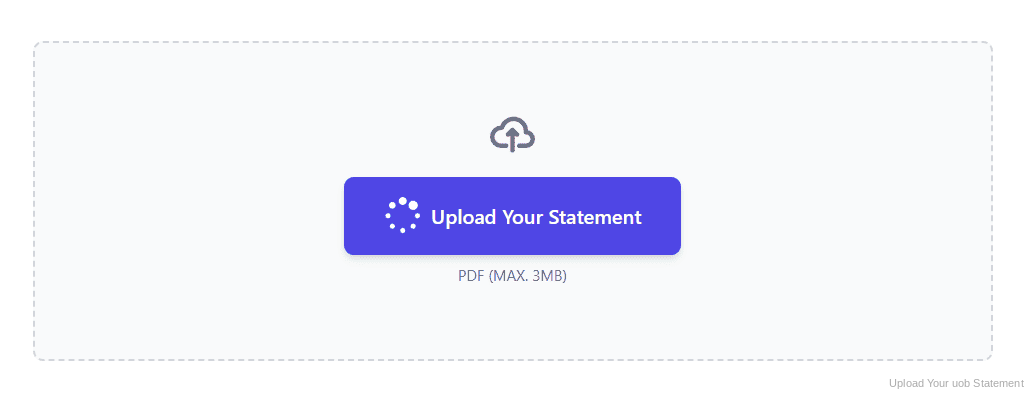
Step 3: Our engine converts it into a structured Excel or CSV file
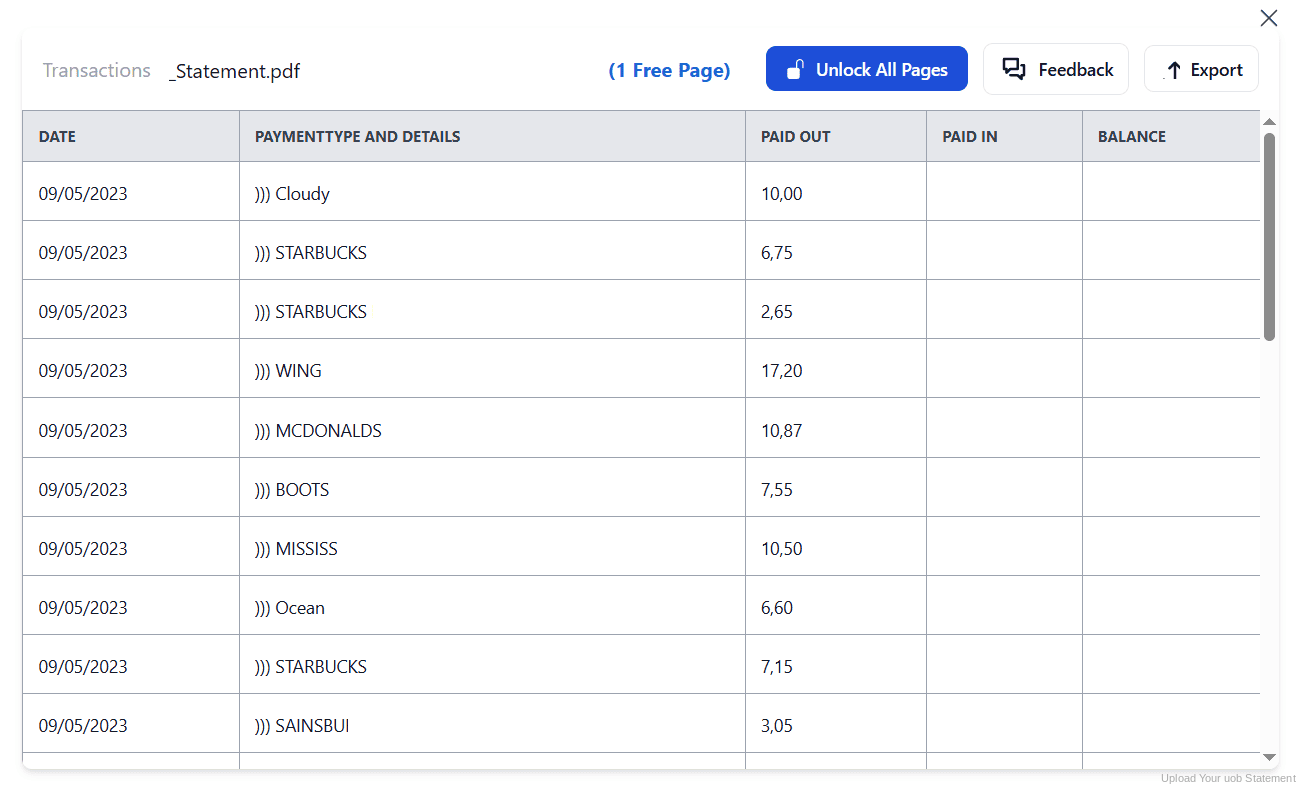
Step 4: Check the result and download your converted file instantly
Can You Convert UOB Statements Manually?
You can, but UOB statements punish manual work in two specific ways. Dates arrive without a year, so once rows leave the statement you can no longer tell 15/03 in one year from 15/03 in the next. And the balance brought forward and carried forward lines repeat on every page, quietly adding rows that were never transactions.
There is more. The currency symbol appears only in the column header, not beside each amount, so copied figures lose their currency context. Layouts differ between statements, split Withdrawals and Deposits in some, a single signed Amount in others. Add descriptions that wrap across lines and page breaks that shift columns, and the spreadsheet stops adding up.
An automatic converter reads the statement, infers the year from the statement period, removes the balance forward rows, normalises the layout and rebuilds Date, Description, Withdrawals, Deposits and Balance as real columns. Check your totals against the closing balance afterwards to confirm the result.
Related Guides
More Singapore Bank Guides:
Frequently Asked Questions
Can I export UOB transactions to CSV?
Yes, from UOB Personal Internet Banking on a desktop browser: open Account Details, choose Download Statement or Statement and Transaction History, set your date range and pick CSV. The UOB TMRW app offers PDF only.
How far back does the UOB export go?
The transaction download typically covers about the last twelve months. For older periods you need the archived PDF statement, which you can convert, or a certified statement requested from the bank.
Why do UOB statement dates have no year?
UOB prints transaction dates as day and month only, such as 15/03. Without the year, sorting and reconciling across periods is unreliable. A proper conversion infers the year from the statement period and writes it back in.
What are the balance brought forward rows in my export?
They are page markers, not transactions. UOB repeats balance brought forward and balance carried forward on every page. Left in place they behave like phantom transactions and inflate your totals, so they should be filtered out.
Can I use converted UOB statements for my GST F5 return?
Yes. A clean Excel or CSV file makes it far easier to reconcile output tax and input tax for your quarterly GST F5 return, and it imports directly into Xero, QuickBooks or MYOB.
Does this work with UOB statements from Malaysia or Thailand?
Yes. UOB's regional statements follow a slightly different format, but the same conversion applies and regional date and number formats are preserved in the output.
Tips for Organizing Your Converted UOB Statements
Once your statements are converted to Excel or CSV, here is how to get the most out of them:
- Download before the twelve month window closesThe native export reaches back about twelve months. Save your statements each quarter and convert them as you go, so a closed financial year is never out of reach.
- Always check the year on your datesBecause UOB prints day and month only, verify that converted rows carry the correct year, particularly around January and December where a statement period spans two years.
- Reconcile against the closing balanceUOB statements carry a running balance column. Compare your converted totals against the closing balance: if they disagree, a transaction is missing or duplicated.
- Track your One and Stash interest tiersUOB One and Stash accounts pay tiered interest with conditions to meet. A converted spreadsheet lets you confirm each month that the requirements were met and the right interest was credited.
- Keep records for five yearsIRAS requires businesses in Singapore to keep proper records and supporting documents for at least five years. Keep the original PDF: in a review it is the source document that counts, not your spreadsheet.
Troubleshooting Common UOB Conversion Issues
- Your export stops about a year backThat is the export window, not a fault. For older periods, open the archived PDF statement and convert it, or request a certified statement from UOB.
- Extra transactions appear that you do not recogniseThese are almost always the balance brought forward and carried forward lines repeated on each page. They are page markers, not transactions, and a clean conversion removes them.
- Amounts have the wrong signYour statement probably uses a single signed Amount column while your import expects separate Withdrawals and Deposits, or the reverse. Conversion detects the layout and normalises it.
- You cannot download CSV in the appThe UOB TMRW app provides PDF statements only. Use Personal Internet Banking on desktop for the native export, or simply convert the PDF you already have.
Final Thoughts: Take Control of Your Financial Data
UOB gives you a transaction download, but it reaches back only about twelve months, it is desktop only, and the PDF statements it archives print dates without a year and repeat balance forward rows on every page.
With StatementSheet, your UOB PDF statements become clean Excel or CSV files: complete dates, phantom rows removed, layouts normalised and amounts that actually add up, ready for your GST return or your accountant.
Ready to convert your UOB bank statement to Excel or CSV?
➡️ Head to convert bank statement PDF to Excel and turn your PDFs into usable spreadsheets.