
How to Convert OCBC Bank Statements to Excel and CSV
A step-by-step guide to export your OCBC bank statements into usable spreadsheet formats.
Managing your banking account gets complex when the transaction export you download won't sort properly, because OCBC omits the year from every transaction date. Whether you're a small business owner filing GST in Singapore, managing your credit cards, or organizing personal banking expenses, getting OCBC data into a usable spreadsheet takes more than clicking export.
In this guide we explain exactly what OCBC lets you export, the date and column traps that break reconciliation, and how StatementSheet, the most accurate tool to convert PDF bank statements into structured, editable data, fixes them.
Can You Download OCBC Bank Statements Directly in Excel or CSV?
Short answer: yes for transactions, no for the statement itself.
In OCBC Internet Banking, hover over the account you want and choose "Details / Transactions". Once the transaction list appears, look for the Download or Export button, where you can pick CSV, XLS or PDF. OCBC typically lets you view around 12 months of transaction history online; for anything older you may need to submit a request.
Your e-Statements are separate, and they're PDFs. OCBC Velocity business users can retrieve the last 24 months. For personal accounts, OCBC is expanding its archive over time: three years of past documents from July 2026, four years in 2027, five in 2028, and eventually seven. Note that from 30 June 2026 OCBC no longer emails electronic documents; you view them in the app or Internet Banking instead. eStatements also aren't available for Time Deposit accounts, Passbook Savings accounts, or joint accounts where all holders must authorise requests.
So OCBC's export exists, but the file it produces is genuinely awkward: transaction dates arrive without the year, and column layouts vary. For the official statement, older periods, or a file that actually reconciles, convert the e-Statement PDF with StatementSheet.
Why Convert OCBC PDF Bank Statements to Excel or CSV?
OCBC's native export works, but it hands you problems that a conversion solves outright:
- Restore the missing year on every dateOCBC statements omit the year from transaction dates, showing "15/03" rather than "15/03/2025". Sorting or reconciling becomes guesswork. A conversion infers the correct year from the statement period and surrounding context.
- Pick the right date out of threeOCBC statements show multiple dates per transaction: transaction date, posting date and value date. Choosing the wrong one silently misaligns your books. Bookkeeping wants the posting date, because that's what matches your bank balance.
- Handle both column layoutsSome OCBC formats use separate Credit and Debit columns, others a single signed Amount column. Treating one as the other flips signs across your whole file.
- Singapore Tax Filing (GST & IRAS)For self-employed individuals and SMEs, correctly dated and signed transaction data streamlines expense tracking and supports IRAS compliance and GST submissions.
- Reach periods the export won't give youTransaction history stops at around 12 months, and older statements require a request. Converting the e-Statement PDFs you already have avoids the wait entirely.
OCBC Transaction Export vs. e-Statement: Which Should You Use?
OCBC keeps recent transaction data and issued statements in different places, with different limits.
| Feature | Transaction export (CSV/XLS) | e-Statement PDF (converted) |
|---|---|---|
| Where | Details / Transactions, then Export | Accounts, then e-Statements |
| History covered | Around 12 months | 24 months (Velocity); 3 years personal from July 2026 |
| Dates include the year | No ("15/03") | Restored on conversion |
| Official record | No | Yes |
| Best for | A quick look at recent rows | GST, IRAS, audits, loan applications |
Rule of thumb: for a quick glance within 12 months, use OCBC's export. For anything that has to reconcile, convert the e-Statement PDF to CSV (for accounting) or Excel (for analysis).
Why Use StatementSheet?
If you're looking to extract data from OCBC bank statements and convert it into structured Excel or CSV format, StatementSheet handles the quirks OCBC's own export leaves you with.
- ✔️ Infers the correct year on OCBC's date fields, which omit it entirely
- ✔️ Consistently extracts the posting date, so your records match your bank balance
- ✔️ Detects whether your statement uses Credit/Debit columns or a signed Amount column, and normalises it
- ✔️ Extracts the running balance and cross-checks it against opening and closing balances
- ✔️ Accurate conversion of Singapore Dollar (SGD) amounts
- ✔️ Supports business and personal statements, GST-ready for Singapore businesses
- ✔️ Converts to Excel (.xlsx) or CSV instantly, ready for Xero, QuickBooks and AutoCount
- ✔️ Secure and confidential, files encrypted on upload and deleted after processing
Which OCBC Documents Can You Convert?
StatementSheet works across the OCBC range, including:
- OCBC savings and current account e-Statements (360 Account, Monthly Savings)
- OCBC credit card statements
- OCBC Velocity business e-Statements (24-month archive)
- Time Deposit and Passbook Savings statements, which have no e-Statement option at all
- Digital PDFs and scanned or photographed paper statements
How to Convert OCBC PDF Bank Statements in Four Easy Steps
Here’s how you can convert your OCBC PDF bank statements
Step 1: Download Your OCBC PDF Bank Statement
- Log in to your OCBC Internet Banking or the OCBC app
- In Internet Banking, select Accounts from the top menu, then e-Statements (in the app, tap More, then Documents, Statements & Letters)
- Filter by account type, category or year
- Save the PDF (you can download and print it afterwards)
Business customers on OCBC Velocity go to Accounts, then e-Statements, with 24 months available. If you only want recent transaction rows, hover over the account, choose Details / Transactions, then Export and pick CSV or XLS, remembering the export covers roughly 12 months and strips the year from every date.
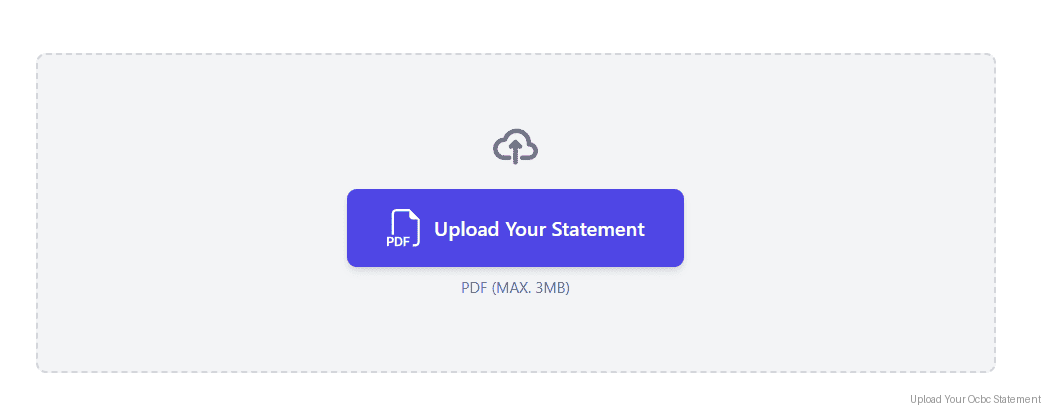
Step 2: Upload your PDF Bank Statement
Step 3: Our smart engine converts it to a structured Excel or CSV file.
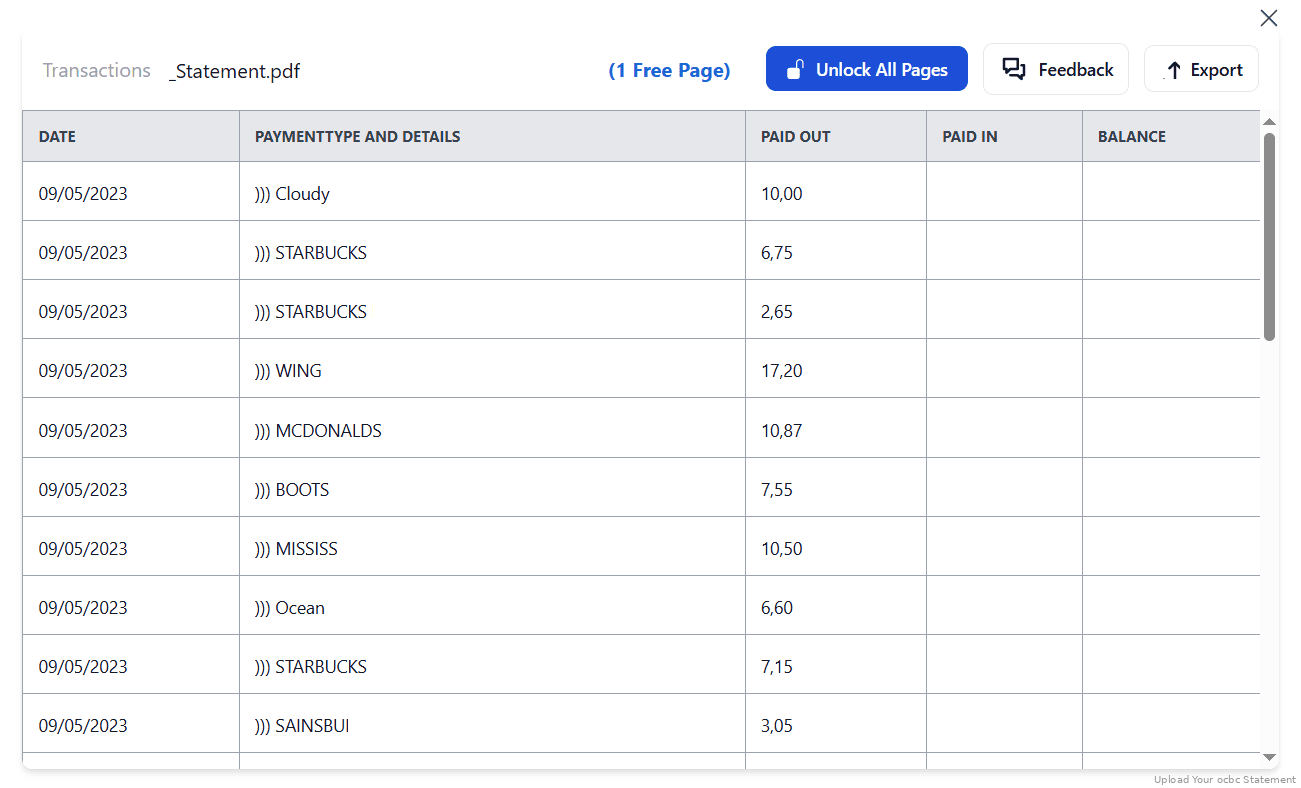
Step 4: Check result & Download your converted document instantly
Can You Convert OCBC Statements Manually?
Two OCBC quirks make manual work genuinely unreliable. Transaction dates carry no year, so a statement spanning December and January puts rows in an order your spreadsheet cannot resolve without you supplying the context. And each transaction shows up to three dates, transaction, posting and value, that mean different things. Bookkeeping needs the posting date; pick another and your ledger stops matching your bank balance.
The column layout compounds it. Some statements separate Credit and Debit, others use one signed Amount column, and copying the wrong assumption reverses every figure. The running balance column, which is your only reliable check for a dropped or duplicated row, is exactly what a rushed copy-paste discards.
An automated converter infers the year, consistently takes the posting date, detects the column layout, and validates the running balance against the opening and closing figures, which is why the four-step method above is the reliable route for GST submissions and IRAS filings.
Related Guides
More Singapore Bank Guides:
Frequently Asked Questions
How do I download my OCBC transactions in CSV?
Hover over the account in Internet Banking and choose Details / Transactions. Once the list appears, use the Download or Export button and pick CSV (XLS and PDF are also offered). It covers around 12 months, and the dates arrive without the year.
Why are the dates in my OCBC file missing the year?
OCBC statements show dates as "15/03" rather than "15/03/2025". Any period crossing a year boundary becomes impossible to sort reliably. StatementSheet infers the correct year from the statement period and context.
Which date should I use for bookkeeping?
OCBC statements show a transaction date, a posting date and a value date. Use the posting date, because that's the one that matches your bank balance. StatementSheet extracts it consistently.
How far back can I get OCBC statements?
OCBC Velocity business users can retrieve 24 months of e-Statements. For personal accounts, OCBC is expanding the archive: three years from July 2026, four years in 2027, five in 2028, and seven over time. Transaction history online covers roughly 12 months.
Does StatementSheet support personal and business banking accounts?
Yes, both are supported, including credit cards, savings, current and Velocity business accounts, as well as Time Deposit and Passbook Savings statements that have no e-Statement option.
Will it work for scanned or photographed statements?
Yes, as long as the scan is clear. StatementSheet includes OCR technology to extract data from image-based PDFs.
Does OCBC charge for downloading PDF bank statements?
No. OCBC provides e-Statements free via the app and Internet Banking. Note that from 30 June 2026, OCBC no longer emails them, so you retrieve them digitally instead.
Tips for Organizing Your OCBC Bank Statements
Once you've converted your OCBC statements to Excel or CSV, here’s how to get the most from your data:
- Verify the year before you sort anythingBecause OCBC omits it, check the first and last rows of any statement spanning December and January before building a pivot table or importing to Xero.
- Keep one date column, not threeStandardise on the posting date across every month. Mixing posting and value dates between statements is a common cause of a ledger that won't reconcile.
- Check the running balance ties outCross-check the running balance against the opening and closing figures on the statement. It's the only way to catch a missing or duplicated transaction.
- Use pivot tables in ExcelBuild monthly reports for budgeting, forecasting, or GST and IRAS filing purposes.
- Download and convert as statements arriveSince older statements may need a formal request, converting each e-Statement when it's issued keeps your archive complete and searchable.
Troubleshooting Common OCBC Conversion Issues
- Transactions won't sort chronologicallyOCBC's dates have no year. Across a December to January boundary, no spreadsheet can order them correctly. Convert the PDF so the year is restored from the statement period.
- Your ledger doesn't match your bank balanceYou're probably using the transaction or value date instead of the posting date. OCBC shows all three, and only the posting date aligns with the balance.
- Every amount has the wrong signYou've read a Credit/Debit statement as a signed Amount one, or vice versa. Confirm which layout your statement uses before totalling.
- No e-Statement for your accounteStatements aren't available for Time Deposit accounts, Passbook Savings accounts, or joint accounts where all holders must authorise requests. Convert whatever paper or scanned statement you hold instead.
Final Thoughts: Take Control of Your OCBC Finances
OCBC does export transactions in CSV and XLS, but the file omits the year from every date, offers three competing date fields, and varies its column layout. That's not data you can reconcile without work.
With StatementSheet, you can convert OCBC e-Statement PDFs into clean, correctly dated, correctly signed Excel or CSV files in seconds. Whether you’re preparing for IRAS tax filing, managing credit cards, or analysing your banking account transactions, you gain full visibility and control.
Stop wasting time with manual entry. Start automating today.
➡️ Try StatementSheet to convert PDF bank statements into actionable data instantly.